---
url: https://plugin.stripo.email/extensions/components/control.md
---
# Control Component
## Overview
::: image-wrap
:::
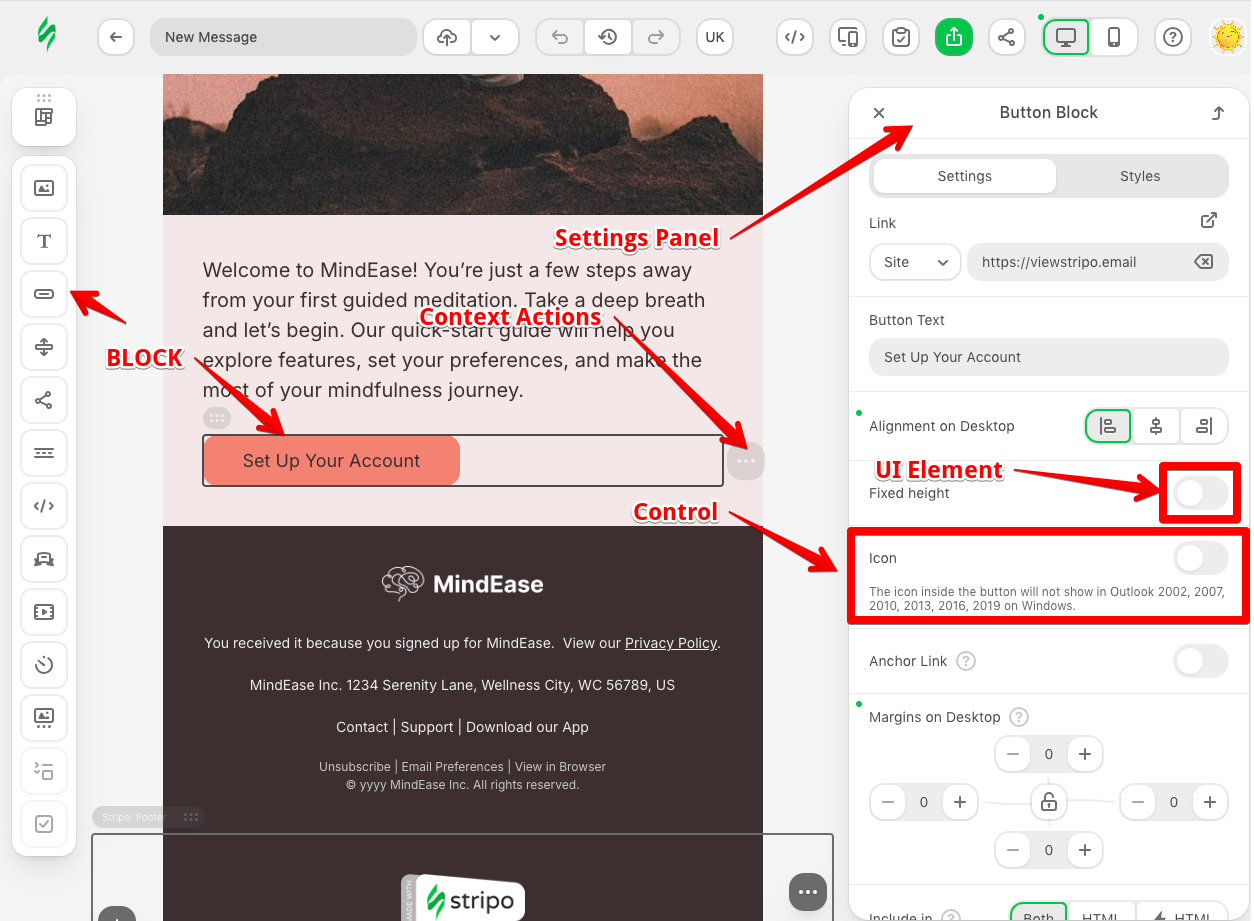
The Control component is the fundamental building block for creating custom settings interfaces in the Stripo Email Editor. Controls appear in the settings panel when users select blocks, allowing them to configure properties like colors, sizes, fonts, and custom behaviors. The Control API enables developers to create rich, interactive configuration interfaces that integrate seamlessly with the editor's template modification system, respond to state changes, and provide intuitive user experiences.
## Purpose and Core Concepts
### What is a Control?
A Control in the Stripo Extensions SDK is a configurable UI component that:
* Appears in the settings panel when users select blocks
* Contains one or more UI elements (inputs, dropdowns, color pickers, etc.)
* Communicates with the template modification system to apply changes
* Can be conditionally shown or hidden based on block state
* Responds to template updates and syncs its state accordingly
* Provides a bridge between the UI and the underlying template structure
### Control Lifecycle
Controls follow a well-defined lifecycle that enables sophisticated behaviors:
1. **Initialization** - The control is instantiated when added to a settings panel
2. **Rendering** - The `onRender()` hook is called once the control's template is inserted into the DOM
3. **Updates** - The `onTemplateNodeUpdated()` hook is called whenever the selected template node changes
4. **Visibility** - The `isVisible()` method is evaluated on each node change
5. **Destruction** - The `onDestroy()` hook is called when the control is removed
### Control vs Built-in Control
The SDK provides two approaches for creating controls:
* **Custom Controls** - Extend the [Control](/extensions/reference/controls/Control) class to create new settings interfaces from scratch
* **Built-in Controls** - Extend `BuiltInControl` classes to customize existing editor controls with minimal code
## Key Features and Capabilities
### 1. Rich UI Composition
Controls can use any combination of UI elements:
* Color pickers, text inputs, dropdowns, checkboxes
* Custom UI elements created with the UIElement class
* Complex layouts with nested controls
* Expandable sections for organized interfaces
### 2. Template Modification
Controls have full access to the template modification system:
* Modify HTML structure and attributes
* Update CSS rules and styles
* Apply changes atomically with undo/redo support
* Chain multiple modifications together
### 3. Dynamic Visibility
Controls can show or hide based on block state:
* Check block attributes or classes
* Evaluate custom conditions
* Respond to configuration changes
* Context-sensitive interface adaptation
### 4. State Synchronization
Controls stay synchronized with template state:
* Automatically update when template changes
* Extract values from selected blocks
* Maintain UI consistency with block properties
## Creating Custom Controls
### Basic Configuration
To create a custom control:
1. Create a class that extends the `Control` class
2. Implement the required methods (`getId()`, `getTemplate()`)
3. Register the control with the ExtensionBuilder
4. Add the control to a settings panel via SettingsPanelRegistry
Minimal control configuration:
```javascript
import {Control, UIElementType, UEAttr, ExtensionBuilder} from '@stripoinc/ui-editor-extensions';
class CustomColorControl extends Control {
getId() {
return 'custom-color-control';
}
getTemplate() {
return `
<${UIElementType.LABEL} ${UEAttr.LABEL.text}="Background Color">
<${UIElementType.COLOR} ${UEAttr.DEFAULT.name}="bgColor">
`;
}
// Additional configuration
}
export default new ExtensionBuilder()
.addControl(CustomColorControl)
.build();
```
### Communicating with UI Elements
Controls interact with UI elements through the Control API:
#### Reading Values
```javascript
class CustomControl extends Control {
getTemplate() {
return `
<${UIElementType.LABEL} ${UEAttr.LABEL.text}="Background Color">
<${UIElementType.COLOR} ${UEAttr.DEFAULT.name}="bgColor">
`;
}
onRender() {
// Get all values at once
const values = this.api.getValues();
console.log(values.bgColor);
// Or listen to individual changes
this.api.onValueChanged('bgColor', (newValue, oldValue) => {
console.log(`Color changed from ${oldValue} to ${newValue}`);
});
}
// Additional configuration
}
```
#### Setting Values
```javascript
class CustomControl extends Control {
getTemplate() {
return `
<${UIElementType.LABEL} ${UEAttr.LABEL.text}="Background Color">
<${UIElementType.COLOR} ${UEAttr.DEFAULT.name}="bgColor">
`;
}
onTemplateNodeUpdated(node) {
// Extract current color from node
const currentColor = node.getStyle('background-color');
// Update UI element
this.api.updateValues({
bgColor: currentColor
});
}
// Additional configuration
}
```
#### Controlling UI Element Properties
```javascript
class CustomControl extends Control {
getTemplate() {
return `
<${UIElementType.LABEL} ${UEAttr.LABEL.text}="Background Color">
<${UIElementType.COLOR} ${UEAttr.DEFAULT.name}="bgColor">
`;
}
onRender() {
// Show/hide UI elements
this.api.setVisibility('bgColor', false);
// Set UI element attributes
this.api.setUIEAttribute('bgColor', 'disabled', true);
}
// Additional configuration
}
```
### Applying Template Modifications
Controls can modify templates using the TemplateModifier API:
```javascript
import {Control, ModificationDescription} from '@stripoinc/ui-editor-extensions';
class BackgroundControl extends Control {
getId() {
return 'background-control';
}
getTemplate() {
return `
<${UIElementType.COLOR} ${UEAttr.DEFAULT.name}="bgColor">
`;
}
onRender() {
this.api.onValueChanged('bgColor', (newColor) => {
// Create and apply modification
this.api.getDocumentModifier()
.modifyHtml(this.currentNode)
.setStyle('background-color', newColor)
.apply(new ModificationDescription('Update background color'));
});
}
onTemplateNodeUpdated(node) {
this.currentNode = node;
// Sync UI with current template state
const currentColor = node.getStyle('background-color');
this.api.updateValues({ bgColor: currentColor });
}
}
```
### Conditional Visibility
Controls can be shown or hidden based on block state:
```javascript
class ConditionalControl extends Control {
isVisible(node) {
// Hide if block has data-locked attribute
if (node.getAttribute('data-locked') === 'true') {
return false;
}
return true;
}
// Additional configuration
}
```
### Element Lock Category
:::::tip Version Availability
This feature is available starting from v3.11.0
:::::
When a template element is locked with the [Lock Element](/editor-configuration/lock-element) feature, the editor disables the settings controls of the element according to the selected lock options ("Prevent content editing" and/or "Prevent style editing") and rejects their patches.
The editor cannot reliably infer from the tab whether a custom control edits content or styling, so each control declares which option governs it with the `getElementLockCategory()` method. By default, custom controls are treated as content controls. Return `ElementLockCategory.STYLE` for controls that edit visual styling:
```javascript
import {Control, ElementLockCategory} from '@stripoinc/ui-editor-extensions';
class BackgroundControl extends Control {
getElementLockCategory() {
return ElementLockCategory.STYLE;
}
// Additional configuration
}
```
## Built-in Controls
The Stripo Extensions SDK provides a comprehensive set of built-in controls for common editing tasks. These controls handle complex editor functionality like color management, sizing, spacing, and more.
**IMPORTANT:** Built-in controls are designed exclusively for modifying Stripo's standard HTML markup. To ensure correct block HTML, always use [Template Aliases](/extensions/tutorials/how-to/template-aliases). If your extension uses custom HTML markup, built-in controls are not supported and may not function as expected.
To use built-in controls:
* Override the appropriate built-in control class
* Set the id of the control
* (Optional) Override control labels
* (Optional) Override target nodes
* (Optional) Add additional modifications
* Register the control with the ExtensionBuilder
* Add the control to a settings panel via SettingsPanelRegistry
### Built-in Control Types by Block Category
The SDK provides a comprehensive collection of built-in controls organized by block type. Each control is designed to modify specific aspects of its corresponding block type. When extending these controls, you can customize their behavior by overriding labels, target nodes, or adding additional modifications.
#### Button Block Controls
Button block controls handle all aspects of button customization, from styling to positioning.
##### ButtonAlignBuiltInControl
* **Description**: Controls button alignment within its container for both desktop and mobile views
* **Override labels**: `ControlLabels`
* `title` - Main control title
##### ButtonBackgroundColorBuiltInControl
* **Description**: Manages button background color modifications
* **Override labels**: `ControlLabels`
* `title` - Main control title
##### ButtonBlockBackgroundColorBuiltInControl
* **Description**: Controls the background color of the entire button block container
* **Override labels**: `ControlLabels`
* `title` - Main control title
##### ButtonBorderBuiltInControl
* **Description**: Handles button border styling including color, width, and style
* **Override labels**: `ButtonBorderControlLabels`
* `title` - Main control title
* `titleHint` - Tooltip for the control title
* `borderColorTitle` - Border color section title
* `borderStyleTitle` - Border style section title
* `borderStyleHint` - Tooltip for border style
##### ButtonBorderRadiusBuiltInControl
* **Description**: Controls button border radius (rounded corners)
* **Override labels**: `ButtonBorderRadiusControlLabels`
* `title` - Main control title
* `titleHint` - Tooltip for the control title
##### ButtonColorBuiltInControl
* **Description**: Controls button text color modifications
* **Override labels**: `ControlLabels`
* `title` - Main control title
##### ButtonFitToContainerBuiltInControl
* **Description**: Adjusts button width to fit container width
* **Override labels**: `ControlLabels`
* `title` - Main control title
##### ButtonFixedHeightBuiltInControl
* **Description**: Controls fixed height for button blocks with alignment options
* **Override labels**: `FixedHeightLabels`
* `title` - Main control title
* `counterTitle` - Height counter section title
* `alignTitle` - Alignment section title
##### ButtonFontFamilyBuiltInControl
* **Description**: Manages button text font family selection
* **Override labels**: `ControlLabels`
* `title` - Main control title
##### ButtonHoverBorderColorBuiltInControl
* **Description**: Controls button border color on hover state
* **Override labels**: `ControlLabels`
* `title` - Main control title
##### ButtonHoverColorBuiltInControl
* **Description**: Manages button background color on hover state
* **Override labels**: `ControlLabels`
* `title` - Main control title
##### ButtonHoverTextColorBuiltInControl
* **Description**: Controls button text color on hover state
* **Override labels**: `ControlLabels`
* `title` - Main control title
##### ButtonMarginsBuiltInControl
* **Description**: Manages external spacing (margins) around the button block
* **Override labels**: `ControlLabels`
* `title` - Main control title
##### ButtonPaddingsBuiltInControl
* **Description**: Controls internal spacing (padding) within the button
* **Override labels**: `ControlLabels`
* `title` - Main control title
##### ButtonTextBuiltInControl
* **Description**: Manages button text content modifications
* **Override labels**: `ControlLabels`
* `title` - Main control title
##### ButtonTextSizeBuiltInControl
* **Description**: Controls button text font size
* **Override labels**: `ControlLabels`
* `title` - Main control title
##### ButtonTextStyleAndFontColorBuiltInControl
* **Description**: Manages button text styling (bold, italic, underline) and font color together
* **Override labels**: `ButtonTextStyleAndFontColorControlLabels`
* `title` - Main control title
* `colorTitle` - Font color section title
* `styleTitle` - Text style section title
##### ButtonVisibilityBuiltInControl
* **Description**: Controls button visibility and display conditions
* **Override labels**: `ControlLabels`
* `title` - Main control title
#### Image Block Controls
Image block controls manage image properties, sizing, and spacing.
##### ImageAlignmentBuiltInControl
* **Description**: Controls image alignment within the surrounding layout
* **Override labels**: `ControlLabels`
* `title` - Main control title
##### ImageMarginsBuiltInControl
* **Description**: Manages external spacing (margins) around image blocks
* **Override labels**: `ControlLabels`
* `title` - Main control title
##### ImageSizeBuiltInControl
* **Description**: Controls image dimensions and sizing options
* **Override labels**: `ControlLabels`
* `title` - Main control title
##### ImageVisibilityBuiltInControl
* **Description**: Controls image visibility and display conditions
* **Override labels**: `ControlLabels`
* `title` - Main control title
#### Text Block Controls
Text block controls handle text formatting, styling, and layout.
##### TextFontFamilyBuiltInControl
* **Description**: Manages font family selection for text blocks
* **Override labels**: `ControlLabels`
* `title` - Main control title
##### TextFixedHeightBuiltInControl
* **Description**: Controls fixed height for text blocks with alignment options
* **Override labels**: `FixedHeightLabels`
* `title` - Main control title
* `counterTitle` - Height counter section title
* `alignTitle` - Alignment section title
##### TextAlignBuiltInControl
* **Description**: Manages text alignment (left, center, right, justify)
* **Override labels**: `ControlLabels`
* `title` - Main control title
##### TextBlockBackgroundBuiltInControl
* **Description**: Controls background color of the entire text block
* **Override labels**: `ControlLabels`
* `title` - Main control title
##### TextColorBuiltInControl
* **Description**: Manages text color modifications
* **Override labels**: `ControlLabels`
* `title` - Main control title
##### TextLineSpacingBuiltInControl
* **Description**: Controls line height and spacing between text lines
* **Override labels**: `ControlLabels`
* `title` - Main control title
##### TextPaddingsBuiltInControl
* **Description**: Manages internal spacing (padding) within text blocks
* **Override labels**: `ControlLabels`
* `title` - Main control title
##### TextSizeBuiltInControl
* **Description**: Controls text font size
* **Override labels**: `ControlLabels`
* `title` - Main control title
##### TextStyleBuiltInControl
* **Description**: Manages text styling (bold, italic, underline, strikethrough)
* **Override labels**: `ControlLabels`
* `title` - Main control title
##### TextVisibilityBuiltInControl
* **Description**: Controls text block visibility and display conditions
* **Override labels**: `ControlLabels`
* `title` - Main control title
#### Container Block Controls
Container controls manage container styling, backgrounds, and borders.
##### ContainerBackgroundColorBuiltInControl
* **Description**: Controls container background color
* **Override labels**: `ControlLabels`
* `title` - Main control title
##### ContainerBackgroundImageBuiltInControl
* **Description**: Manages container background image and its positioning
* **Override labels**: `BackgroundImageControlLabels`
* `title` - Main control title
* `titleHint` - Tooltip for the control title
* `repeat` - Background repeat option label
* `repeatHint` - Tooltip for repeat option
* `horizontalPosition` - Horizontal position label
* `verticalPosition` - Vertical position label
* `backgroundWidth` - Background width label
* `backgroundHeight` - Background height label
##### ContainerBorderBuiltInControl
* **Description**: Controls container border styling including color, width, and style
* **Override labels**: `BorderLabels`
* `title` - Main control title
* `borderColorTitle` - Border color section title
* `borderStyleTitle` - Border style section title
* `borderStyleHint` - Tooltip for border style
##### ContainerBorderRadiusBuiltInControl
* **Description**: Controls container border radius (rounded corners). Available from v3.11.0
* **Override labels**: `ControlLabels`
* `title` - Main control title
##### ContainerVisibilityBuiltInControl
* **Description**: Controls container visibility and display conditions
* **Override labels**: `ControlLabels`
* `title` - Main control title
#### Structure Block Controls
Structure controls manage layout structures, including responsive behavior and styling.
##### StructureAdaptBuiltInControl
* **Description**: Controls structure responsive behavior and mobile adaptation settings
* **Override labels**: `StructureAdaptControlLabels`
* `title` - Main control title
* `description` - Descriptive text for adaptation options
##### StructureBackgroundColorBuiltInControl
* **Description**: Manages structure background color
* **Override labels**: `ControlLabels`
* `title` - Main control title
##### StructureBackgroundImageBuiltInControl
* **Description**: Controls structure background image and its positioning
* **Override labels**: `BackgroundImageControlLabels`
* `title` - Main control title
* `titleHint` - Tooltip for the control title
* `repeat` - Background repeat option label
* `repeatHint` - Tooltip for repeat option
* `horizontalPosition` - Horizontal position label
* `verticalPosition` - Vertical position label
* `backgroundWidth` - Background width label
* `backgroundHeight` - Background height label
##### StructureBorderBuiltInControl
* **Description**: Manages structure border styling including color, width, and style
* **Override labels**: `BorderLabels`
* `title` - Main control title
* `borderColorTitle` - Border color section title
* `borderStyleTitle` - Border style section title
* `borderStyleHint` - Tooltip for border style
##### StructureMarginsBuiltInControl
* **Description**: Controls external spacing (margins) around structure blocks
* **Override labels**: `ControlLabels`
* `title` - Main control title
##### StructurePaddingsBuiltInControl
* **Description**: Manages internal spacing (padding) within structure blocks
* **Override labels**: `ControlLabels`
* `title` - Main control title
##### StructureVisibilityBuiltInControl
* **Description**: Controls structure visibility and display conditions
* **Override labels**: `ControlLabels`
* `title` - Main control title
### Extending Built-in Controls
The `BuiltInControl` class allows you to customize existing editor controls with minimal code. This is useful when you want to:
* Change which elements a control targets
* Override control labels
* Add additional modifications
* Customize control behavior for custom blocks
#### Basic Built-in Control Extension
In the example below, we use the button background color control without modification.
The control finds all Stripo button blocks and applies the background color to them.
```javascript
import {ButtonBackgroundColorBuiltInControl} from '@stripoinc/ui-editor-extensions';
class CustomBackgroundColorControl extends ButtonBackgroundColorBuiltInControl {
getId() {
return 'custom-background-control';
}
}
```
#### Overriding Target Nodes
By default, a built-in control attempts to find all nodes of the appropriate type inside the selected one to apply changes.
You can override this behavior to target specific elements:
```javascript
import {BlockSelector, ButtonBackgroundColorBuiltInControl} from '@stripoinc/ui-editor-extensions';
class CustomBackgroundColorControl extends ButtonBackgroundColorBuiltInControl {
getId() {
return 'custom-background-control';
}
getTargetNodes(root) {
// Target only first button block inside the selected root node
return [
root.querySelector(BlockSelector.BUTTON)
];
}
}
```
#### Customizing Labels
Override labels to match your custom block terminology:
```javascript
import {ButtonBackgroundColorBuiltInControl} from '@stripoinc/ui-editor-extensions';
class CustomBackgroundColorControl extends ButtonBackgroundColorBuiltInControl {
getId() {
return 'custom-background-control';
}
getLabels() {
return {
title: this.api.translate('Custom Background Color')
};
}
}
```
#### Adding Custom Modifications
If you need to add custom modifications to the template, you can use the `getAdditionalModifications()` method.
Describe all modifications with the modifier and return it without calling `apply()` to prevent multiple records in the undo stack and version history.
If you want to override the message in the version history, you can use the `getModificationDescription()` method:
```javascript
import {
BlockSelector,
ButtonBackgroundColorBuiltInControl,
ModificationDescription
} from '@stripoinc/ui-editor-extensions';
class CustomBackgroundColorControl extends ButtonBackgroundColorBuiltInControl {
getId() {
return 'custom-background-control';
}
getAdditionalModifications(root) {
const modifier = this.api.getDocumentModifier();
// Add border to button in addition to the background color
modifier
.modifyHtml(root.querySelector(BlockSelector.BUTTON))
.setStyle('border', '1px solid #ddd');
return modifier;
}
getModificationDescription() {
return new ModificationDescription('Update background with border');
}
}
```
#### Conditional Visibility for Built-in Controls
Show or hide the control based on block state:
```javascript
import {
BlockSelector,
ButtonBackgroundColorBuiltInControl,
} from '@stripoinc/ui-editor-extensions';
class CustomBackgroundColorControl extends ButtonBackgroundColorBuiltInControl {
getId() {
return 'custom-background-control';
}
isVisible(node) {
return !!node.querySelector(BlockSelector.BUTTON).getAttribute('bgcolor');
}
}
```
#### Element Lock Category for Built-in Controls
:::::tip Version Availability
This feature is available starting from v3.11.0
:::::
By default, `getElementLockCategory()` of a built-in control returns `undefined`, so the control inherits the [Lock Element](/editor-configuration/lock-element) category of the extended parent control. For example, a control extending a style parent is governed by the "Prevent style editing" option automatically.
Override the method with an explicit [ElementLockCategory](/extensions/reference/constants/ElementLockCategory) only when you need to change that:
```javascript
import {
ButtonBackgroundColorBuiltInControl,
ElementLockCategory,
} from '@stripoinc/ui-editor-extensions';
class CustomBackgroundColorControl extends ButtonBackgroundColorBuiltInControl {
getId() {
return 'custom-background-control';
}
// Governed by the "Prevent content editing" option instead of the category inherited from the parent control
getElementLockCategory() {
return ElementLockCategory.CONTENT;
}
}
```
## Control API
The Control API provides access to:
* Current node and document root access
* Template modification system
* UI element management (visibility, attributes, values)
* Value change listeners
* Editor configuration and state
* Internationalization utilities
You can find more practical examples in the [Working with APIs](/extensions/tutorials/how-to/working-with-apis) tutorial.
## Best Practices
### 1. Keep Controls Focused
Each control should handle a single responsibility. For complex configuration requirements, consider creating multiple related controls.
### 2. Synchronize State
Always implement `onTemplateNodeUpdated()` to keep UI elements synchronized with template state.
### 3. Use Descriptive IDs
Control IDs should clearly describe their purpose: `product-price-color` rather than `control-1`.
### 4. Validate User Input
Validate values before applying modifications to prevent invalid template states.
### 5. Provide User Feedback
Use modification descriptions that clearly explain changes to provide better version history messages.
### 6. Clean Up Resources
Always implement `onDestroy()` if you create timers, intervals, or external event listeners.
### 7. Leverage Built-in Controls
Before creating a custom control from scratch, check if extending a built-in control would be faster and more maintainable.