---
url: >-
https://plugin.stripo.email/extensions/tutorials/examples/integrations/external-ai-assistant.md
---
# Integrate an External AI Assistant
## Overview
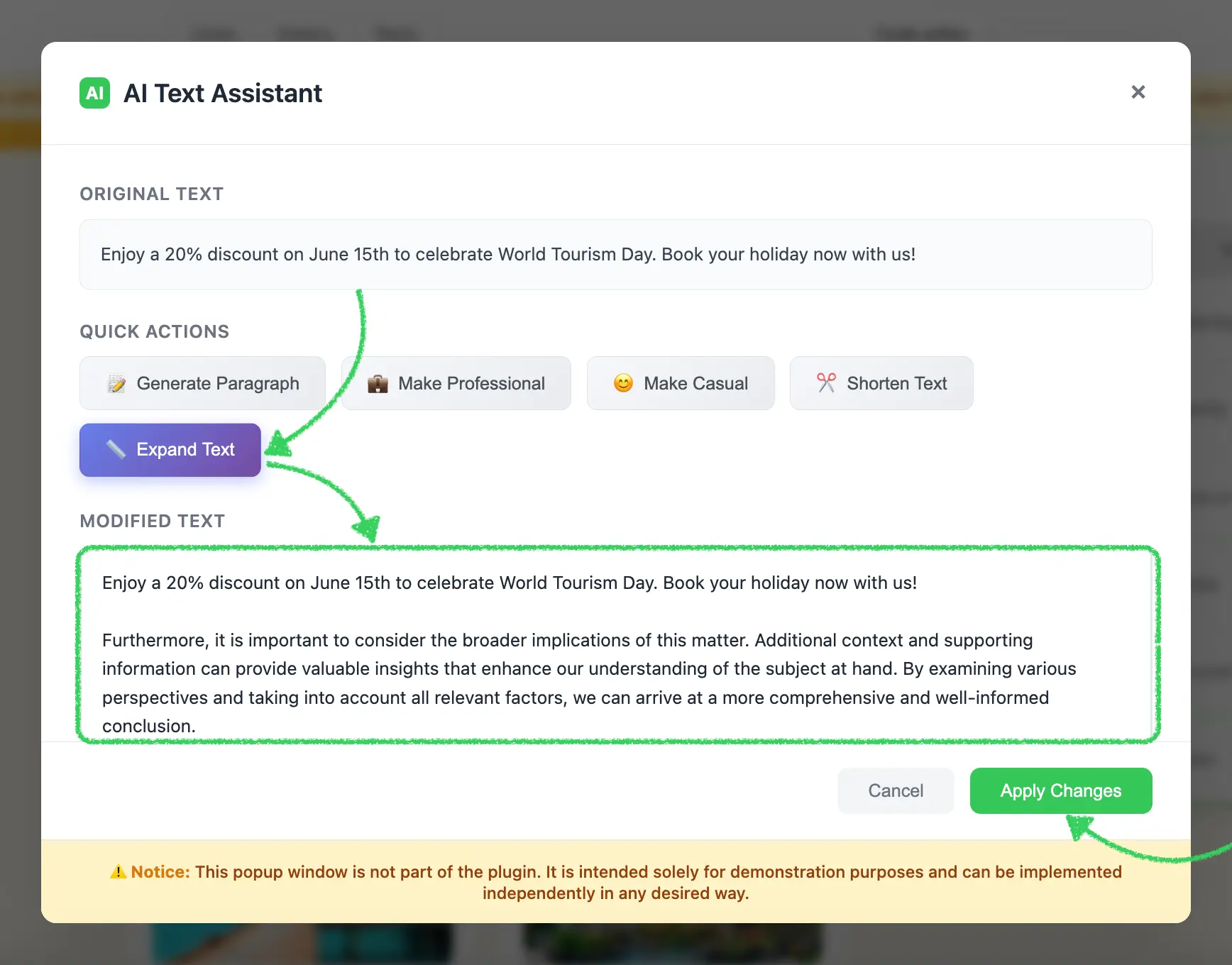
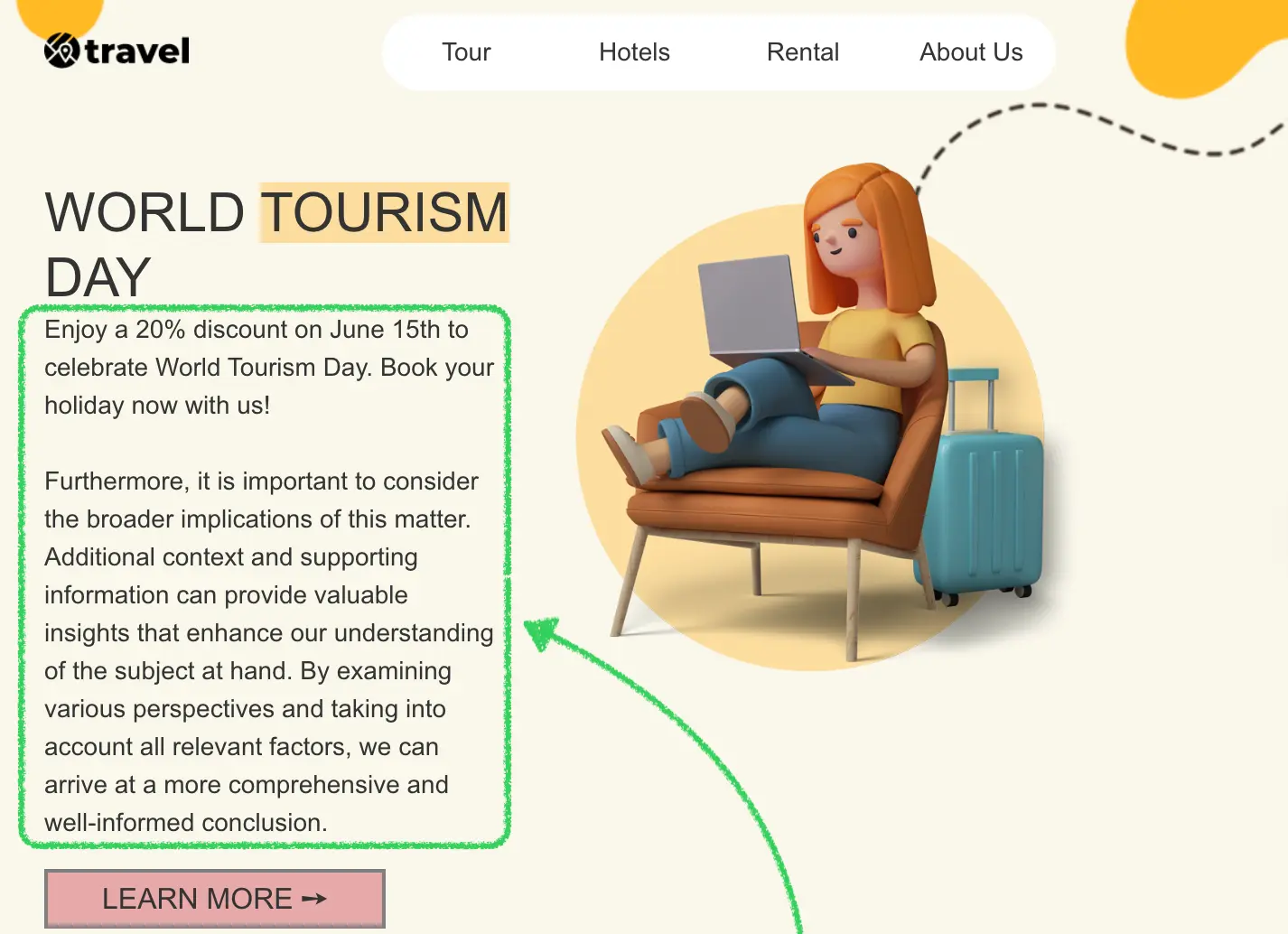
The External AI Assistant integration enables users to enhance and transform text content using AI-powered suggestions directly within the Stripo Email Editor. This integration provides a seamless experience for improving email copy with various text transformations including tone adjustment, length modification, and professional formatting.
### What You'll Build
In this tutorial, you'll create a fully functional AI assistant modal that:
* Displays the original text content for reference
* Provides quick action buttons for common text transformations
* Includes an editable text area for manual adjustments
* Supports multiple transformation types (professional, casual, expand, shorten, generate)
* Handles text selection with proper callback integration
* Returns transformed text in the format expected by the Stripo editor
::: image-wrap
{width=1626 height=756}
:::
::: image-wrap
{width=1736 height=1360}
:::
::: image-wrap
{width=1426 height=1034}
:::
### Use Cases
* **Content Enhancement**: Improve email copy with AI-powered suggestions
* **Tone Adjustment**: Transform text between professional and casual tones
* **Length Optimization**: Expand or shorten content to fit design requirements
* **Content Generation**: Generate new paragraphs when starting from scratch
* **Multi-language Support**: Connect to translation APIs for internationalization
* **Brand Voice**: Ensure consistent brand voice across email campaigns
* **A/B Testing**: Generate variations of content for testing
## Prerequisites
Before starting this tutorial, ensure you have:
* Node.js version 22.x or higher installed
* Basic understanding of JavaScript ES6+ syntax
* Familiarity with the Stripo Extensions SDK
## Understanding the Interface
The [ExternalAiAssistant](/extensions/reference/integrations/ExternalAiAssistant) class must implement a single method:
```typescript
openAiAssistant({
value: string,
onDataSelectCallback: (transformedText: string) => void,
onCancelCallback: () => void
}): void
```
### Parameters
| Parameter | Type | Description |
|-----------|------|-------------|
| `value` | `string` | The original text content to enhance or transform |
| `onDataSelectCallback` | `Function` | Callback function invoked when user applies transformed text |
| `onCancelCallback` | `Function` | Callback function invoked when user cancels the operation |
### Return Value
When a user applies transformed text, your assistant implementation must invoke the callback with a string containing the enhanced text:
```javascript
onDataSelectCallback(textarea.value);
```
## Step 1: Project Setup
Create your project structure and install dependencies according to the [Getting Started](/extensions/getting-started) guide.
Your project directory structure should look like this:
```bash
external-ai-assistant/
├── index.html
├── src/
│ ├── creds.js
│ ├── index.js
│ ├── extension.js
├── package.json
└── vite.config.js
```
## Step 2: Create the AI Assistant Class
Create a new file `src/MyExternalAiAssistant.js` with the following basic class structure:
```javascript
import {ExternalAiAssistant} from '@stripoinc/ui-editor-extensions';
/**
* External AI Assistant Implementation
* This class implements a modal AI text assistant with various text transformation capabilities
* for the Stripo Email Editor extension system.
*/
export class MyExternalAiAssistant extends ExternalAiAssistant {
// Instance properties
externalAiAssistant;
dataSelectCallback = () => {};
cancelCallback = () => {};
originalText = '';
constructor() {
super();
this.createModal();
this.attachEventListeners();
}
/**
* Required method called by the Stripo editor
* Opens the AI assistant modal dialog
* @param {Object} params - Parameters object
* @param {string} params.value - The text to work with
* @param {Function} params.onDataSelectCallback - Callback when text is selected
* @param {Function} params.onCancelCallback - Callback when modal is cancelled
*/
openAiAssistant({value, onDataSelectCallback, onCancelCallback}) {
// Store callbacks
this.dataSelectCallback = onDataSelectCallback;
this.cancelCallback = onCancelCallback;
this.originalText = value || '';
// Display original text
const originalTextDiv = this.externalAiAssistant.querySelector('#originalText');
originalTextDiv.textContent = this.originalText || 'No text provided';
// Set the textarea value
this.externalAiAssistant.querySelector('#text').value = this.originalText;
// Show modal
this.externalAiAssistant.style.display = 'flex';
}
}
```
### Key Components Explained
* **Instance Properties**:
* `externalAiAssistant`: Reference to the modal DOM element
* `dataSelectCallback`: Stores the success callback from the Stripo editor
* `cancelCallback`: Stores the cancel callback from the Stripo editor
* `originalText`: Stores the original text for reference and transformations
* **Constructor**: Initializes the complete modal UI when the class is instantiated
* **openAiAssistant**: Required method that:
* Stores the callbacks for later invocation
* Displays the original text in a read-only section
* Pre-fills the editable textarea with the original text
* Shows the modal dialog
## Step 3: Define Text Transformations and Styles
Add static properties for transformation logic and UI configuration. Continue editing `src/MyExternalAiAssistant.js`:
```javascript
export class MyExternalAiAssistant extends ExternalAiAssistant {
// ... existing properties ...
// UI Style configurations
static STYLES = {
// Modal overlay styles
overlay: {
backgroundColor: 'rgba(0, 0, 0, 0.6)',
backdropFilter: 'blur(4px)',
position: 'fixed',
top: '0',
right: '0',
bottom: '0',
left: '0',
zIndex: '1050',
fontFamily: "-apple-system, BlinkMacSystemFont, 'Segoe UI', Roboto, 'Helvetica Neue', Arial, sans-serif",
display: 'flex',
alignItems: 'center',
justifyContent: 'center',
padding: '20px'
},
// Modal container styles
modal: {
background: '#ffffff',
borderRadius: '12px',
boxShadow: '0 20px 60px rgba(0, 0, 0, 0.15)',
maxWidth: '900px',
width: '100%',
maxHeight: '90vh',
display: 'flex',
flexDirection: 'column'
},
// Header styles
header: {
padding: '24px 30px',
borderBottom: '1px solid #e5e7eb',
display: 'flex',
alignItems: 'center',
justifyContent: 'space-between'
},
// Body styles
body: {
padding: '30px',
overflowY: 'auto',
flex: '1'
},
// Footer styles
footer: {
padding: '20px 30px',
borderTop: '1px solid #e5e7eb',
display: 'flex',
justifyContent: 'flex-end',
gap: '12px'
},
// Button styles
suggestionButton: {
background: 'linear-gradient(135deg, #f5f7fa 0%, #e9ecef 100%)',
border: '1px solid #dee2e6',
borderRadius: '8px',
padding: '10px 20px',
fontSize: '14px',
fontWeight: '500',
color: '#495057',
cursor: 'pointer',
transition: 'all 0.3s ease',
display: 'flex',
alignItems: 'center',
gap: '8px'
},
primaryButton: {
backgroundColor: '#34c759',
color: 'white',
padding: '10px 24px',
borderRadius: '8px',
fontSize: '14px',
fontWeight: '500',
border: 'none',
cursor: 'pointer',
transition: 'all 0.3s ease'
},
cancelButton: {
backgroundColor: '#f3f4f6',
color: '#6b7280',
padding: '10px 24px',
borderRadius: '8px',
fontSize: '14px',
fontWeight: '500',
border: 'none',
cursor: 'pointer',
transition: 'all 0.3s ease'
},
// Disclaimer footer styles
disclaimerFooter: {
padding: '16px 30px',
borderTop: '1px solid #e5e7eb',
backgroundColor: '#fef3c7',
borderRadius: '0 0 12px 12px',
textAlign: 'center'
}
};
// Text transformation templates
static TEXT_TRANSFORMATIONS = {
paragraph: {
icon: '📝',
label: 'Generate Paragraph',
transform: () => "Lorem ipsum dolor sit amet, consectetur adipiscing elit. Sed do eiusmod tempor incididunt ut labore et dolore magna aliqua. Ut enim ad minim veniam, quis nostrud exercitation ullamco laboris nisi ut aliquip ex ea commodo consequat. Duis aute irure dolor in reprehenderit in voluptate velit esse cillum dolore eu fugiat nulla pariatur. Excepteur sint occaecat cupidatat non proident, sunt in culpa qui officia deserunt mollit anim id est laborum."
},
professional: {
icon: '💼',
label: 'Make Professional',
transform: (text) => text ?
`Dear valued recipient,\n\nI hope this message finds you well. ${text}\n\nPlease do not hesitate to contact me if you require any further information or clarification.\n\nBest regards` :
"Dear valued recipient,\n\nI hope this message finds you well. I am writing to bring to your attention a matter of significant importance that requires your immediate consideration.\n\nPlease do not hesitate to contact me if you require any further information or clarification.\n\nBest regards"
},
casual: {
icon: '😊',
label: 'Make Casual',
transform: (text) => text ?
`Hey there! 👋\n\n${text}\n\nLet me know if you need anything else!\n\nCheers!` :
"Hey there! 👋\n\nJust wanted to drop you a quick message. Hope everything's going great on your end!\n\nLet me know if you need anything else!\n\nCheers!"
},
shorten: {
icon: '✂️',
label: 'Shorten Text',
transform: (text) => text && text.length > 50 ?
text.substring(0, Math.min(text.length / 2, 100)) + "..." :
"Brief and concise message."
},
expand: {
icon: '📏',
label: 'Expand Text',
transform: (text) => text ?
`${text}\n\nFurthermore, it is important to consider the broader implications of this matter. Additional context and supporting information can provide valuable insights that enhance our understanding of the subject at hand. By examining various perspectives and taking into account all relevant factors, we can arrive at a more comprehensive and well-informed conclusion.` :
"This is an expanded version of the text with additional details, context, and supporting information. It provides a more comprehensive view of the subject matter, exploring various aspects and implications that might not have been immediately apparent in the original version."
}
};
// ... rest of the class ...
}
```
### Transformation Object Properties
Each transformation in `TEXT_TRANSFORMATIONS` contains:
| Property | Type | Description |
|----------|------|-------------|
| `icon` | `string` | Emoji icon displayed on the button |
| `label` | `string` | Button label text |
| `transform` | `Function` | Transformation function that takes original text and returns transformed text |
::: tip Production Implementation
In production environments, replace the static transformation functions with actual API calls to AI services like OpenAI, Anthropic Claude, or your custom AI backend.
:::
## Step 4: Build the Modal UI Structure
Implement the core modal creation methods. These methods generate the modal HTML structure and inject it into the page.
### Create Modal Method
```javascript
/**
* Creates the modal HTML structure and appends it to the document body
*/
createModal() {
const modalHtml = this.generateModalHTML();
const container = document.createElement('div');
container.innerHTML = modalHtml;
document.body.appendChild(container);
// Store reference to the modal element
this.externalAiAssistant = document.getElementById('externalAiAssistant');
// Initially hide the modal
this.externalAiAssistant.style.display = 'none';
}
/**
* Generates the complete modal HTML structure
* @returns {string} Complete HTML string for the modal
*/
generateModalHTML() {
return `
`;
}
```
### Style Conversion Helper
Add the following utility method that converts JavaScript style objects to inline CSS strings:
```javascript
/**
* Converts a style object to an inline style string
* @param {Object} styleObj - Style object with camelCase properties
* @returns {string} Inline CSS style string with kebab-case properties
*/
styleObjToString(styleObj) {
return Object.entries(styleObj)
.map(([key, value]) => {
// Convert camelCase to kebab-case
const kebabKey = key.replace(/([A-Z])/g, '-$1').toLowerCase();
return `${kebabKey}: ${value}`;
})
.join('; ');
}
```
::: warning Important
The `styleObjToString()` method is essential for converting the `STYLES` object into inline CSS strings. This method is required for proper modal rendering.
:::
### Modal Structure Overview
The modal consists of four main sections:
1. **Header**: Title with AI icon and close button
2. **Body**: Original text display, action buttons, and text editor
3. **Footer**: Cancel and Apply buttons
4. **Disclaimer Footer**: Informational notice
## Step 5: Generate Header with Branding
Create the header section with AI branding and close button.
### Header HTML Generator
```javascript
/**
* Generates the modal header section HTML
* @returns {string} HTML string for the header section
*/
generateHeaderHTML() {
return `
AI
AI Text Assistant
${this.generateCloseButton()}
`;
}
```
### Close Button Generator
```javascript
/**
* Generates close button HTML with hover effects
* @returns {string} HTML string for the close button
*/
generateCloseButton() {
return `
`;
}
```
## Step 6: Generate Body with Three Sections
Create the body section containing original text, action buttons, and text editor.
### Body Container Generator
```javascript
/**
* Generates the modal body section HTML
* @returns {string} HTML string for the body section
*/
generateBodyHTML() {
return `
`;
}
```
### Original Text Section
```javascript
/**
* Generates the original text section HTML
* @returns {string} HTML string for original text section
*/
generateOriginalTextSection() {
return `
Original Text
`;
}
```
### Actions Section with Quick Actions
```javascript
/**
* Generates the actions section HTML
* @returns {string} HTML string for actions section
*/
generateActionsSection() {
return `
Quick Actions
${this.generateActionButtons()}
`;
}
/**
* Generates action button HTML
* @returns {string} HTML string for action buttons
*/
generateActionButtons() {
return Object.entries(MyExternalAiAssistant.TEXT_TRANSFORMATIONS).map(([action, config]) => `
`).join('');
}
```
### Text Editor Section
```javascript
/**
* Generates the text editor section HTML
* @returns {string} HTML string for text editor section
*/
generateTextEditorSection() {
return `
Modified Text
`;
}
```
### Key Features
1. **Three-Section Layout**: Clear separation of original text, actions, and editable output
2. **Scrollable Original Text**: Maximum height with overflow for long content
3. **Flexible Action Grid**: Wraps buttons on smaller screens
4. **Hover Effects**: Gradient transformation on button hover with smooth animations
5. **Editable Textarea**: Users can manually edit generated text before applying
6. **Focus States**: Visual feedback when textarea is focused
## Step 7: Generate Footer with Action Buttons
Add footer section with cancel and apply buttons.
```javascript
/**
* Generates the modal footer section HTML
* @returns {string} HTML string for the footer section
*/
generateFooterHTML() {
return `
`;
}
/**
* Generates the disclaimer footer section HTML
* @returns {string} HTML string for the disclaimer footer
*/
generateDisclaimerFooterHTML() {
return `
⚠️ Notice: This popup window is not part of the plugin. It is intended solely for demonstration purposes and can be implemented independently in any desired way.
`;
}
```
## Step 8: Implement Event Handlers
Add event listeners to handle user interactions with the modal.
### Attach Event Listeners
```javascript
/**
* Attaches event listeners to modal elements after creation
*/
attachEventListeners() {
// Close button click handler
this.externalAiAssistant.querySelector('.close')
.addEventListener('click', this.cancelAndClose.bind(this));
// Cancel button click handler
this.externalAiAssistant.querySelector('.cancelButton')
.addEventListener('click', this.cancelAndClose.bind(this));
// OK button click handler
this.externalAiAssistant.querySelector('.okButton')
.addEventListener('click', this.onOkClick.bind(this));
// Suggestion button click handlers
const suggestionButtons = this.externalAiAssistant.querySelectorAll('.suggestion-btn');
suggestionButtons.forEach(btn => {
btn.addEventListener('click', (e) => this.handleSuggestion(e.currentTarget.dataset.action));
});
}
```
### Handle Text Transformations
```javascript
/**
* Handles suggestion button clicks
* @param {string} action - The action to perform
*/
handleSuggestion(action) {
const transformation = MyExternalAiAssistant.TEXT_TRANSFORMATIONS[action];
if (!transformation) return;
const textarea = this.externalAiAssistant.querySelector('#text');
textarea.value = transformation.transform(this.originalText);
}
```
::: tip Real AI Integration
In production, the `handleSuggestion` method should make actual API calls to AI services.
:::
### Handle Apply and Cancel Actions
```javascript
/**
* Handles OK button click
*/
onOkClick() {
const text = this.externalAiAssistant.querySelector('#text').value.replaceAll('\n', ' ');
this.close();
this.dataSelectCallback(text);
}
/**
* Closes the modal and invokes the cancel callback
*/
cancelAndClose() {
this.close();
this.cancelCallback();
}
/**
* Closes the modal dialog by hiding it from view
*/
close() {
this.externalAiAssistant.style.display = 'none';
}
```
### Key Implementation Details
1. **Data Attribute Pattern**: Uses `data-action` attributes to identify which transformation to apply
2. **Newline Conversion**: Converts `\n` to ` ` for HTML email compatibility
3. **Callback Invocation**: Ensures callbacks are called in correct order
4. **Modal State Management**: Simple show/hide toggle using display property
## Step 9: Register the Extension
Create `src/extension.js` to register your AI assistant with the Stripo extension system:
```javascript
import {ExtensionBuilder} from '@stripoinc/ui-editor-extensions';
import {MyExternalAiAssistant} from './MyExternalAiAssistant';
export default new ExtensionBuilder()
.withExternalAiAssistant(MyExternalAiAssistant)
.build();
```
### Extension Registration Explained
The `ExtensionBuilder` class provides a fluent API for registering integrations:
* **`withExternalAiAssistant()`**: Registers your custom AI assistant implementation
* **`build()`**: Constructs and returns the final extension object for the editor
::: tip Multiple Integrations
Multiple `.with*()` methods can be chained to register different integrations within a single extension:
```javascript
new ExtensionBuilder()
.withExternalAiAssistant(MyExternalAiAssistant)
.withExternalImageLibrary(MyExternalImageLibrary)
.withExternalVideosLibrary(MyExternalVideosLibrary)
.build();
```
:::
## Step 10: Run the Development Server
Your implementation is now ready for testing.
### Start the Development Server
```bash
npm run dev
```
This command will:
1. Start the Vite development server on `http://localhost:3000`
2. Automatically open your default browser
3. Load the Stripo Editor with your AI assistant extension integrated
## Complete Example
For a full working example, check out the complete implementation in our [GitHub repository](https://github.com/stripoinc/stripo-plugin-samples/tree/main/extensions/javascript/external-ai-assistant).