---
url: >-
https://plugin.stripo.email/extensions/tutorials/examples/integrations/external-video-library.md
---
# Integrate an External Video Library
## Overview
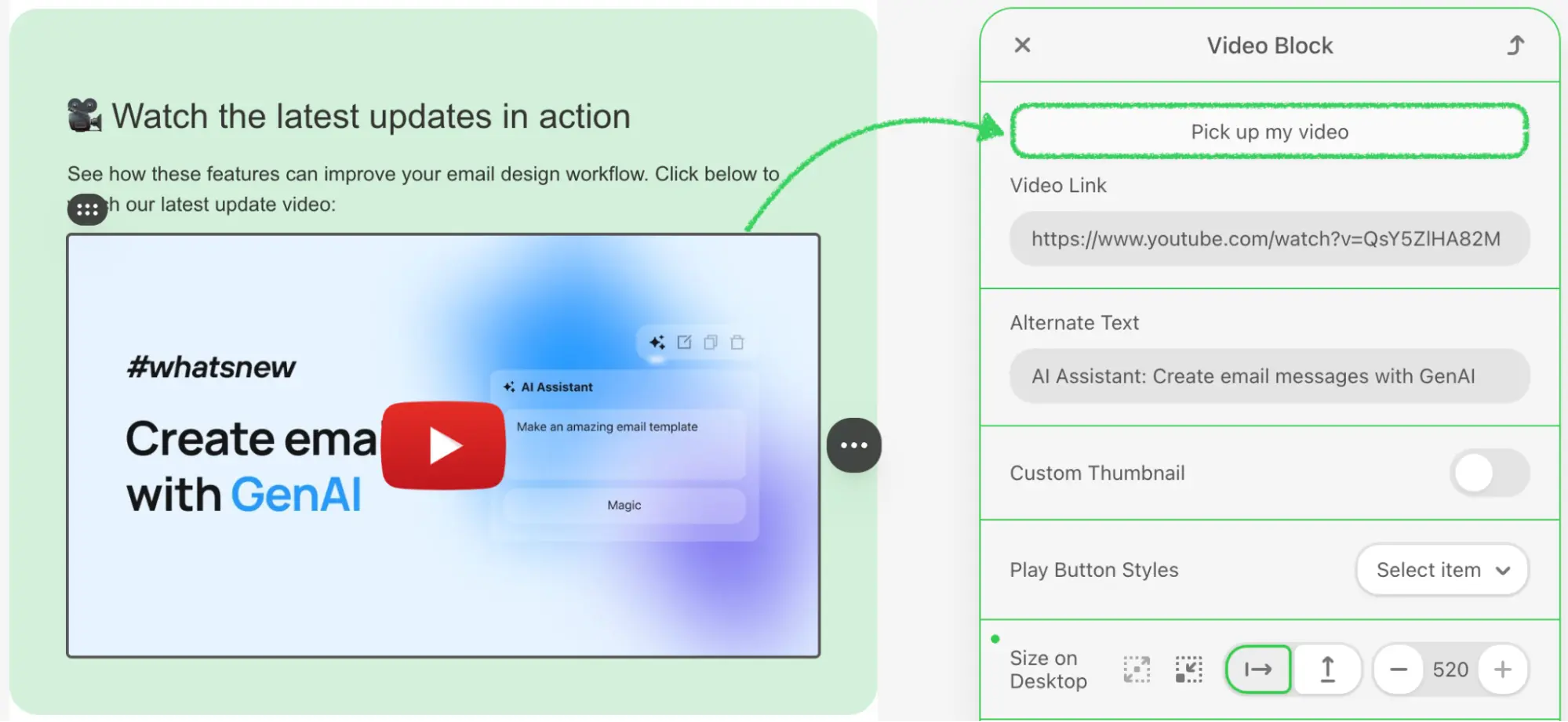
The External Video Library integration enables users to browse and select videos from your video hosting service or third-party platforms such as YouTube, Vimeo, or Wistia directly within the Stripo Email Editor. This integration provides a seamless experience for embedding videos in email templates while automatically generating email-safe video thumbnails with play buttons.
### What You'll Build
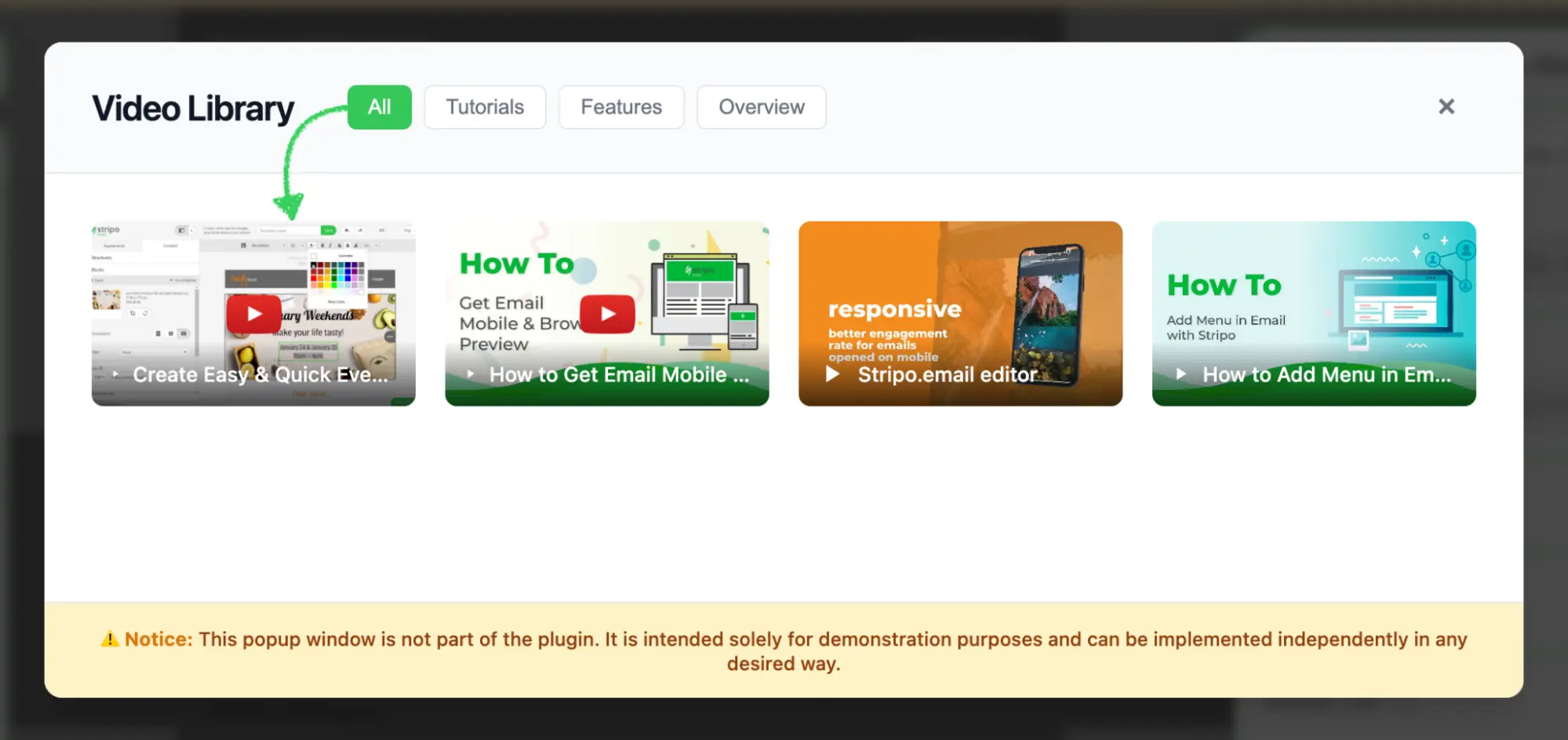
In this tutorial, you'll create a fully functional video library modal that:
* Displays a responsive grid of video thumbnails with hover effects
* Supports category-based filtering (All, Tutorials, Features, Overview)
* Handles video selection with proper callback integration
* Returns video data in the format expected by the Stripo editor
::: image-wrap
{width=1999 height=921}
:::
::: image-wrap
{width=1999 height=943}
:::
### Use Cases
* **Custom Video Platform**: Connect your proprietary video hosting service
* **Curated Content**: Provide pre-approved videos for brand consistency
* **Third-Party Integration**: Connect to YouTube, Vimeo, Wistia, or other platforms
* **Dynamic Content**: Fetch videos from your API or CMS in real-time
## Prerequisites
Before starting this tutorial, ensure you have:
* Node.js version 22.x or higher installed
* Basic understanding of JavaScript ES6+ syntax
* Familiarity with the Stripo Extensions SDK
## Understanding the Interface
The [ExternalVideosLibrary](/extensions/reference/integrations/ExternalVideosLibrary) class must implement a single method:
```typescript
openExternalVideosLibraryDialog(
currentVideo: string,
onVideoSelectCallback: (video: ExternalGalleryVideo) => void,
onCancelCallback: () => void
): void
```
### Parameters
| Parameter | Type | Description |
|-------------------------|------------|-------------------------------------------------------------|
| `currentVideo` | `string` | Currently selected video URL |
| `onVideoSelectCallback` | `Function` | Callback function invoked when a user selects a video |
| `onCancelCallback` | `Function` | Callback function invoked when a user cancels the selection |
### ExternalGalleryVideo Object
When a user selects a video, your library implementation must return an object with the following structure:
```typescript
{
originalVideoName: string; // Video title/name
originalImageName: string; // Thumbnail image name
urlImage: string; // Thumbnail image URL
urlVideo: string; // Video URL (YouTube, Vimeo, etc.)
hasCustomButton: boolean; // Use custom play button styling
altText: string; // Alt text for accessibility
}
```
## Step 1: Project Setup
Create your project structure and install dependencies according to the [Getting Started](/extensions/getting-started) guide.
Your project directory structure should look like this:
```bash
external-video-library/
├── index.html
├── src/
│ ├── creds.js
│ ├── index.js
│ └── extension.js
├── package.json
└── vite.config.js
```
## Step 2: Create the Video Library Class
Create a new file `src/MyExternalVideoLibrary.js` with the following basic class structure:
```javascript
import {ExternalVideosLibrary} from '@stripoinc/ui-editor-extensions';
/**
* External Video Library Implementation
* This class implements a modal video gallery with filtering capabilities
* for the Stripo Email Editor extension system.
*/
export class MyExternalVideoLibrary extends ExternalVideosLibrary {
// Instance properties
externalLibrary;
videoSelectCallback = () => {};
cancelCallback = () => {};
activeCategory = 'all';
constructor() {
super();
this.createModal();
this.attachEventListeners();
this.initializeFilters();
}
/**
* Required method called by the Stripo editor
* Opens the video library modal dialog
* @param {ExternalGalleryVideo} currentVideo - Currently selected video (if any)
* @param {Function} onVideoSelectCallback - Callback invoked when a video is selected
* @param {Function} onCancelCallback - Callback invoked when the modal is cancelled
*/
openExternalVideosLibraryDialog(currentVideo, onVideoSelectCallback, onCancelCallback) {
// Store callbacks
this.videoSelectCallback = onVideoSelectCallback;
this.cancelCallback = onCancelCallback;
// Show modal
this.externalLibrary.style.display = 'flex';
// Reset filters to show all videos
this.filterVideos('all');
const allButton = this.externalLibrary.querySelector('[data-category="all"]');
if (allButton) {
this.updateActiveButton(allButton);
}
}
}
```
### Key Components Explained
* **Instance Properties**:
* `externalLibrary`: Reference to the modal DOM element
* `videoSelectCallback`: Stores the success callback from the Stripo editor
* `cancelCallback`: Stores the cancel callback from the Stripo editor
* `activeCategory`: Tracks the currently active filter category
* **Constructor**: Initializes the complete modal UI upon class instantiation
* **openExternalVideosLibraryDialog**: Required method that performs the following:
* Stores the callbacks for later invocation
* Displays the modal dialog
* Resets filters to display all videos
* Updates the active button state
## Step 3: Define Video Data and Styles
Add static properties for video data and UI configuration. Continue editing `src/MyExternalVideoLibrary.js`:
```javascript
export class MyExternalVideoLibrary extends ExternalVideosLibrary {
// ... existing properties ...
// UI Style configurations
static STYLES = {
// Modal overlay styles
overlay: {
backgroundColor: 'rgba(0,0,0,.7)',
position: 'fixed',
top: '0',
right: '0',
bottom: '0',
left: '0',
zIndex: '1050',
display: 'flex',
alignItems: 'center',
justifyContent: 'center',
backdropFilter: 'blur(4px)',
fontFamily: "-apple-system, BlinkMacSystemFont, 'Segoe UI', Roboto, 'Helvetica Neue', Arial, sans-serif"
},
// Modal container styles
modal: {
backgroundColor: '#ffffff',
borderRadius: '12px',
boxShadow: '0 20px 25px -5px rgba(0, 0, 0, 0.1), 0 10px 10px -5px rgba(0, 0, 0, 0.04)',
maxWidth: '1000px',
width: '90%',
display: 'flex',
flexDirection: 'column',
position: 'relative'
},
// Header styles
header: {
padding: '24px 32px',
borderBottom: '1px solid #e5e7eb',
display: 'flex',
alignItems: 'center',
justifyContent: 'space-between',
backgroundColor: '#f9fafb',
borderRadius: '12px 12px 0 0'
},
// Content container styles
content: {
padding: '32px',
height: '289px',
overflowY: 'auto',
overflowX: 'hidden',
boxSizing: 'border-box'
},
// Grid styles
grid: {
display: 'grid',
gridTemplateColumns: 'repeat(auto-fill, minmax(200px, 1fr))',
gap: '20px',
gridAutoRows: '125px'
},
// Button styles
buttonActive: {
padding: '6px 14px',
borderRadius: '6px',
border: 'none',
backgroundColor: '#34c759',
color: 'white',
fontSize: '14px',
fontWeight: '500',
cursor: 'pointer',
transition: 'background-color 0.2s'
},
buttonInactive: {
padding: '6px 14px',
borderRadius: '6px',
border: '1px solid #e5e7eb',
backgroundColor: 'white',
color: '#6b7280',
fontSize: '14px',
fontWeight: '500',
cursor: 'pointer',
transition: 'all 0.2s'
},
// Footer styles
footer: {
padding: '16px 32px',
borderTop: '1px solid #e5e7eb',
backgroundColor: '#fef3c7',
borderRadius: '0 0 12px 12px',
textAlign: 'center'
}
};
// Sample videos data
static VIDEOS = [
{
category: 'tutorial',
src: 'https://psyrh.stripocdn.email/content/guids/videoImgGuid/images/23121555584914821.png',
title: 'Create Easy & Quick Event Reminder Using Template for Food Industry',
altText: 'Create Easy & Quick Event Reminder Using Template for Food Industry',
urlVideo: 'https://www.youtube.com/watch?v=rNmAdmOMp0Y',
hasButton: true
},
{
category: 'features',
src: 'https://psyrh.stripocdn.email/content/guids/videoImgGuid/images/1641555585106902.png',
title: 'How to Get Email Mobile & Browser Preview with Stripo',
altText: 'How to Get Email Mobile & Browser Preview with Stripo',
urlVideo: 'https://www.youtube.com/watch?v=R4NXtC3h598',
hasButton: true
},
{
category: 'overview',
src: 'https://psyrh.stripocdn.email/content/guids/videoImgGuid/images/1881555585513981',
title: 'Stripo.email editor',
altText: 'Stripo.email editor',
urlVideo: 'https://www.youtube.com/watch?v=ryqOEPk51Lg',
hasButton: false
},
{
category: 'tutorial',
src: 'https://psyrh.stripocdn.email/content/guids/videoImgGuid/images/24481555585355917',
title: 'How to Add Menu in Email with Stripo',
altText: 'How to Add Menu in Email with Stripo',
urlVideo: 'https://www.youtube.com/watch?v=XPFWthaa35Q',
hasButton: false
}
];
// ... rest of the class ...
}
```
### Video Object Properties
| Property | Type | Description |
|----------|------|-------------|
| `category` | `string` | Filter category (tutorial, features, overview) |
| `src` | `string` | Thumbnail image URL |
| `title` | `string` | Video display name |
| `altText` | `string` | Alt text for accessibility |
| `urlVideo` | `string` | YouTube, Vimeo, or other video URL |
| `hasButton` | `boolean` | Whether to show custom play button overlay |
::: tip Production Implementation
In production environments, replace the static `VIDEOS` array with API calls to fetch videos dynamically from your backend service.
:::
## Step 4: Build the Modal UI Structure
Implement the core modal creation methods. These methods generate the modal HTML structure and inject it into the page.
### Create Modal Method
```javascript
/**
* Creates the modal HTML structure and appends it to the document body
*/
createModal() {
const modalHtml = this.generateModalHTML();
const container = document.createElement('div');
container.innerHTML = modalHtml;
document.body.appendChild(container);
// Store reference to the modal element
this.externalLibrary = document.getElementById('externalVideoLibrary');
// Initially hide the modal
this.externalLibrary.style.display = 'none';
}
/**
* Generates the complete modal HTML structure
* @returns {string} Complete HTML string for the modal
*/
generateModalHTML() {
return `
`;
}
```
### Style Conversion Helper
Add this utility method that converts JavaScript style objects to inline CSS strings:
```javascript
/**
* Converts a style object to an inline style string
* @param {Object} styleObj - Style object with camelCase properties
* @returns {string} Inline CSS style string with kebab-case properties
*/
styleObjToString(styleObj) {
return Object.entries(styleObj)
.map(([key, value]) => {
// Convert camelCase to kebab-case
const kebabKey = key.replace(/([A-Z])/g, '-$1').toLowerCase();
return `${kebabKey}: ${value}`;
})
.join('; ');
}
```
::: warning Important
The `styleObjToString()` method is essential for converting the `STYLES` object into inline CSS strings. This method is required for proper modal rendering.
:::
### Modal Structure Overview
The modal consists of three main sections:
1. **Header**: Title, category filter buttons, and close button
2. **Content**: Scrollable grid of video thumbnails
3. **Footer**: Informational disclaimer
## Step 5: Generate Header with Filters
Create the header section with title, filter buttons, and close button.
### Header HTML Generator
```javascript
/**
* Generates the modal header section HTML
* @returns {string} HTML string for the header section
*/
generateHeaderHTML() {
return `
Video Library
${this.generateFilterButtons()}
${this.generateCloseButton()}
`;
}
```
### Filter Buttons Generator
```javascript
/**
* Generates category filter buttons HTML
* @returns {string} HTML string for all filter buttons
*/
generateFilterButtons() {
const categories = [
{ id: 'all', label: 'All', active: true },
{ id: 'tutorial', label: 'Tutorials', active: false },
{ id: 'features', label: 'Features', active: false },
{ id: 'overview', label: 'Overview', active: false }
];
return categories.map(cat => `
`).join('');
}
```
::: tip Category Customization
Categories can be added or modified by updating the `categories` array. Ensure that your video data contains matching `category` values for proper filtering.
:::
### Close Button Generator
```javascript
/**
* Generates close button HTML with hover effects
* @returns {string} HTML string for the close button
*/
generateCloseButton() {
return `
`;
}
```
## Step 6: Generate Content with Video Grid
Create the content section that displays the video thumbnails in a responsive grid.
### Content Container Generator
```javascript
/**
* Generates the modal content section HTML with video grid
* @returns {string} HTML string for the content section
*/
generateContentHTML() {
return `
${this.generateVideoThumbnails()}
`;
}
```
### Video Thumbnails Generator
```javascript
/**
* Generates video thumbnail cards HTML
* @returns {string} HTML string for all video thumbnail cards
*/
generateVideoThumbnails() {
return MyExternalVideoLibrary.VIDEOS.map(video => `
${video.title}
`).join('');
}
```
### Key Features
1. **Responsive Grid**: Utilizes CSS Grid with `auto-fill` to create a responsive layout that adapts to different screen sizes
2. **Fixed Row Height**: The `gridAutoRows: '125px'` property ensures consistent thumbnail heights across the grid
3. **Hover Effects**: Inline event handlers provide smooth transition animations on user interaction
4. **Data Attributes**: Video metadata (`data-url-video`, `data-has-button`) is stored in data attributes for efficient retrieval
5. **Play Button Overlay**: SVG play icon with gradient background overlay for enhanced visual presentation
6. **Text Truncation**: Automatic ellipsis handling prevents long video titles from breaking the layout
## Step 7: Generate Footer with Disclaimer
Add a footer section to display important notices or disclaimers.
```javascript
/**
* Generates the modal footer section HTML with disclaimer notice
* @returns {string} HTML string for the footer section
*/
generateFooterHTML() {
return `
⚠️ Notice: This popup window is not part of the plugin. It is intended solely for demonstration purposes and can be implemented independently in any desired way.
`;
}
```
## Step 8: Implement Event Handlers
Add event listeners to handle user interactions with the modal.
### Attach Event Listeners
```javascript
/**
* Attaches event listeners to modal elements after creation
*/
attachEventListeners() {
// Close button click handler
this.externalLibrary.querySelector('.close')
.addEventListener('click', this.cancelAndClose.bind(this));
// Video click handler (using event delegation)
this.externalLibrary.addEventListener('click', this.onVideoClick.bind(this));
}
```
### Handle Video Selection
```javascript
/**
* Handles click events on video thumbnail cards
* @param {Event} e - Click event object
*/
onVideoClick(e) {
// Check if clicked on thumbnail or any of its children
const thumbnail = e.target.closest('.thumbnail');
if (!thumbnail) return;
// Get the image element within the thumbnail
const img = thumbnail.querySelector('img');
if (!img) return;
// Create callback object with video data
const videoData = {
originalVideoName: img.getAttribute('alt'),
originalImageName: img.getAttribute('alt'),
urlImage: img.getAttribute('src'),
urlVideo: img.getAttribute('data-url-video'),
hasCustomButton: img.getAttribute('data-has-button') === 'true',
altText: img.getAttribute('alt')
};
// Close modal and execute callback
this.close();
this.videoSelectCallback(videoData);
}
```
### Handle Modal Closure
```javascript
/**
* Closes the modal and invokes the cancel callback
*/
cancelAndClose() {
this.close();
this.cancelCallback();
}
/**
* Closes the modal dialog by hiding it from view
*/
close() {
this.externalLibrary.style.display = 'none';
}
```
### Event Delegation Benefits
Using event delegation by listening on the parent container provides several advantages:
* **Improved Performance**: A single event listener replaces multiple individual listeners for each thumbnail
* **Simplified Maintenance**: Eliminates the need to attach and detach listeners dynamically
* **Future-Proof Implementation**: Automatically handles dynamically added video elements
* **Memory Efficiency**: Reduces memory footprint when managing numerous elements
## Step 9: Implement Category Filtering
Add filtering functionality to help users find videos by category.
### Initialize Filter Buttons
```javascript
/**
* Initializes category filter button functionality
*/
initializeFilters() {
const filterButtons = this.externalLibrary.querySelectorAll('.filter-buttons button');
filterButtons.forEach(button => {
button.addEventListener('click', (e) => {
const category = e.target.getAttribute('data-category');
this.filterVideos(category);
this.updateActiveButton(e.target);
});
});
}
```
### Filter Videos by Category
```javascript
/**
* Filters displayed videos based on the selected category
* @param {string} category - Category identifier to filter by (or 'all' for all videos)
*/
filterVideos(category) {
this.activeCategory = category;
const thumbnails = this.externalLibrary.querySelectorAll('.thumbnail');
thumbnails.forEach(thumbnail => {
const shouldShow = category === 'all' ||
thumbnail.getAttribute('data-category') === category;
thumbnail.style.display = shouldShow ? 'block' : 'none';
});
}
```
### Update Button Visual States
```javascript
/**
* Updates the visual state of category filter buttons
* @param {HTMLElement} activeButton - The button element that was clicked and should be marked active
*/
updateActiveButton(activeButton) {
const buttons = this.externalLibrary.querySelectorAll('.filter-buttons button');
buttons.forEach(button => {
const isActive = button === activeButton;
const styles = isActive ?
MyExternalVideoLibrary.STYLES.buttonActive :
MyExternalVideoLibrary.STYLES.buttonInactive;
// Apply styles
Object.assign(button.style, styles);
});
}
```
## Step 10: Register the Extension
Create `src/extension.js` to register your video library with the Stripo extension system:
```javascript
import {ExtensionBuilder} from "@stripoinc/ui-editor-extensions";
import {MyExternalVideoLibrary} from "./MyExternalVideoLibrary";
export default new ExtensionBuilder()
.withExternalVideosLibrary(MyExternalVideoLibrary)
.build();
```
### Extension Registration Explained
The `ExtensionBuilder` class provides a fluent API for registering integrations:
* **`withExternalVideosLibrary()`**: Registers your custom video library implementation
* **`build()`**: Constructs the final extension object for the editor
::: tip Multiple Integrations
Multiple `.with*()` methods can be chained to register different integrations within a single extension:
```javascript
new ExtensionBuilder()
.withExternalVideosLibrary(MyExternalVideoLibrary)
.withExternalImageLibrary(MyExternalImageLibrary)
.withExternalMergeTagsSelector(MyMergeTagsSelector)
.build();
```
:::
## Step 11: Run the Development Server
Your implementation is now ready for testing.
### Start the Development Server
```bash
npm run dev
```
This command will:
1. Start the Vite development server on `http://localhost:3000`
2. Automatically open your default browser
3. Load the Stripo editor with your video library extension integrated
## Complete Example
For a full working example, check out the complete implementation in our [GitHub repository](https://github.com/stripoinc/stripo-plugin-samples/tree/main/extensions/javascript/external-video-library).