---
url: https://plugin.stripo.email/getting-started/connecting-the-editor.md
---
# Connecting the Editor
Connecting the editor is a straightforward process consisting of several steps:
1. ## Preparing the editor space
Determine where the editor will be placed in the HTML structure of your application. Use a container with a unique identifier for this purpose. For example:
```html
```
2. ## Adding the editor script
Add a `
```
**For a specific version of the editor:**
```html
```
To check the available versions of Stripo Plugin, please refer to [Release Notes](https://stripo.email/releases/?page=1\&subtype=new\&type=plugin) (make sure you’re viewing the versions of the new Plugin).
If you wish to host the front-end part of the editor on your server to improve loading times, please note that this is possible under any pricing plan. Follow this [guide](/hosting-stripo-editor-files-on-your-own-cdn) to learn how to host the front-end assets of the editor on your CDN.
3. ## Initializing the editor
Use JavaScript code to initialize the editor with your chosen configuration in the specified container on the webpage.
```js
const domContainer = document.querySelector('#stripoEditorContainer');
const stripoConfig = {...};
window.UIEditor.initEditor(domContainer, stripoConfig);
```
::: info-clear
To initialise the editor inside an existing Angular application, you need to wrap the init method, as in the example
```js
constructor(
private readonly zone: NgZone // provide NgZone
) {}
ngOnInit(): void {
//... YOUR CODE HERE
// wrap Editor initialisation
this.zone.runOutsideAngular(() => {
const domContainer = document.querySelector('#stripoEditorContainer');
const stripoConfig = {...};
window.UIEditor.initEditor(domContainer, stripoConfig);
});
//... YOUR CODE HERE
}
```
:::
You can find all supported parameters for the plugin configuration in the [Initialization Settings](/editor-configuration/initialization-settings) section.
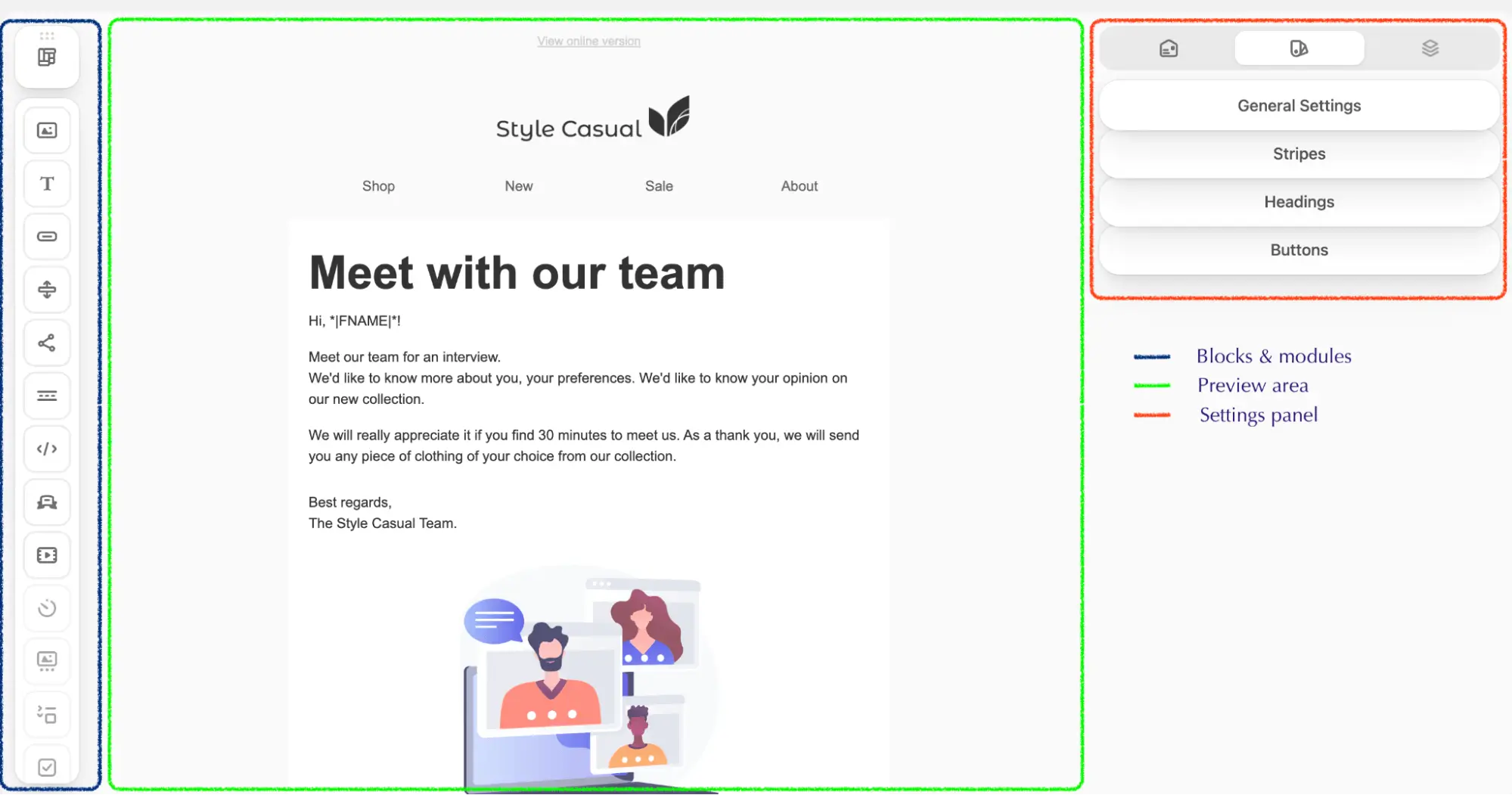
Once the `initEditor` function is triggered, the user will see the editor displayed on the UI as shown in the image below.
::: image-wrap
{height=1051 width=1999}
:::
Please be advised that you can control the default position of the Settings panel and Blocks and Modules panel by passing `panelPosition` parameter while plugin initialization. It may have two possible states:
* ”BLOCKS\_SETTINGS” — blocks and modules panel on the left, settings panel on the right;
* ”SETTINGS\_BLOCKS” — settings panel on the left, blocks and modules panel on the right