---
url: https://plugin.stripo.email/plugin-invocations/javascript-api.md
---
# JavaScript API
The new Stripo editor provides a flexible API for interaction with external environments. Access to the API can be obtained through the global `StripoEditorApi` object.
**Accessing the Stripo API:**
```js
const StripoEditorApi = window.StripoEditorApi
```
Available APIs:
API for working with modules in Module Editing Mode. A detailed description can be found in the [modulesApi](#4b.-додати-окремий-підрозділ-##-modules-api)) section.
**Example Usage:**
To access the version history API, you can use the following code:
```js
const VersionHistoryApi = window.StripoEditorApi.versionHistoryApi
```
## Actions API
The `actionsApi` provides methods for performing various actions within the Stripo email editor. This API allows for dynamic interactions with the editor, enabling users to execute commands such as saving templates, undoing/redoing changes, setting names, and more.
**Available Methods:**
```js
const callback = function ({html, css, width, height, utmParams, syncModulesIds}) {
// Process the template data here
};
window.StripoEditorApi.actionsApi.getTemplateData(callback);
```
```js
const callback = function (html, css, width, height) {
// ...
}
window.StripoEditorApi.actionsApi.getTemplate(callback)
```
```js
const сompileEmailCallback = function(error, html, ampHtml, ampErrors, displayConditions) {
// ...
};
const utmParameters = {
utmSource: '',
utmMedium: '',
utmCampaign: '',
utmContent: '',
utmTerm: '',
customUtms: [
{
'name1': 'val1',
'name2': 'val2'
}
]
};
window.StripoEditorApi.actionsApi.compileEmail(
{
callback: сompileEmailCallback,
minimize: true,
utmEntity: utmParameters,
mergeTags: ['Tag1', 'Tag2'],
forсeAmp: false,
resetDataSavedFlag: false,
disableLineHeightsReplace: true
}
);
```
```js
window.StripoEditorApi.actionsApi.setName('New email name')
```
```js
const isAllDataSaved = window.StripoEditorApi.actionsApi.isAllDataSaved()
```
```js
const saveCallback = function (error) {
//...
}
window.StripoEditorApi.actionsApi.save(saveCallback)
```
```js
window.StripoEditorApi.actionsApi.undo()
```
```js
window.StripoEditorApi.actionsApi.redo()
```
```js
window.StripoEditorApi.actionsApi.showAmpErrorsModal(
ampErrors,
[
{
text: 'Preview',
action: () => {
console.log('"Preview" button clicked')
},
},
],
() => {
console.log('"Close" button clicked')
},
() => {
console.log('"Fix in Code Editor" button clicked')
}
)
```
```js
// Turn custom styles ON
window.StripoEditorApi.actionsApi.activateCustomViewStyles(true);
// Turn custom styles OFF
window.StripoEditorApi.actionsApi.activateCustomViewStyles(false);
```
```js
const html = 'Hello world
';
const css = 'p { color: #ff0000; }';
window.StripoEditorApi.actionsApi.updateHtmlAndCss(
html,
css,
() => {
console.log('Template HTML and CSS were updated');
}
);
```
## Email Metadata API
The `emailMetadataApi` provides methods for accessing and managing the metadata associated with an email template in the Stripo email editor. This API allows users to retrieve and update metadata such as the email title and preheader, facilitating integration with external systems and enhancing the customization of the email editing experience.
**Available Methods:**
```js
const title = window.StripoEditorApi.emailMetadataApi.getTitle();
if (title) {
console.log('Current email title:', title)
} else {
console.log('No title is specified for the email in the editor.')
}
```
```js
const newTitle = 'Welcome Email'
window.StripoEditorApi.emailMetadataApi.setTitle(newTitle)
```
```js
const preheader = window.StripoEditorApi.emailMetadataApi.getHiddenPreHeader();
if (preheader) {
console.log('Current hidden preheader:', preheader)
} else {
console.log('No hidden preheader is specified for the email in the editor.')
}
```
```js
const newPreheader = "Don't miss out on our latest updates!"
window.StripoEditorApi.emailMetadataApi.setHiddenPreHeader(newPreheader)
```
## Accessibility API
The `accessibilityApi` provides methods for controlling the [Accessibility Testing Mode](/editor-configuration/accessibility-checker) in the Stripo email editor. This API allows your application to programmatically start accessibility testing, simulate visual impairments, adjust preview settings, and control the editor interface while testing accessibility.
Accessibility Testing Mode helps users identify potential accessibility issues in email templates by simulating different visual conditions and providing tools for inspecting the email content.
**Available Methods:**
`openAccessibilityTestingMode`
The **openAccessibilityTestingMode** method switches the editor to **Accessibility Testing Mode**.\
This method only changes the editor mode. The UI controls used to manage accessibility testing (for example preview switching, image visibility, or color vision filters) must be implemented in the host application interface.
**Sample**
```js
window.StripoEditorApi.accessibilityApi.openAccessibilityTestingMode();
```
**Detailed Explanation**
* **Custom UI Integration:**\
The plugin does not provide built-in UI controls for managing the testing mode. These controls can be implemented by the plugin owner in the host application interface.
* **Testing Environment Activation:**\
Once activated, the editor becomes ready to accept additional Accessibility API commands such as applying color filters or switching preview modes.
**Use Cases**
* **Custom Accessibility Button:**\
Add a button in your application header that starts accessibility testing.
* **Accessibility Workflow:**\
Trigger accessibility testing as part of a quality assurance workflow before sending the email.
`closeAccessibilityTestingMode`
The **closeAccessibilityTestingMode** method exits Accessibility Testing Mode and returns the editor to the regular editing mode.
**Sample**
```js
window.StripoEditorApi.accessibilityApi.closeAccessibilityTestingMode();
```
**Detailed Explanation**
* **Return to Editing Mode:**\
The editor switches back to the normal editing interface.
* **Accessibility Simulation End:**\
Any testing environment previously enabled (such as image hiding or color vision filters) is no longer applied.
**Use Cases**
* **Custom Exit Button:**\
Implement a button that allows users to leave accessibility testing mode.
* **UI State Control:**\
Automatically exit testing mode after accessibility checks are completed.
`isAccessibilityTestingModeOpen`
The **isAccessibilityTestingModeOpen** method checks whether the editor is currently in Accessibility Testing Mode.
**Sample**
```js
const isOpen = window.StripoEditorApi.accessibilityApi.isAccessibilityTestingModeOpen();
```
**Detailed Explanation**
* **Mode Status Detection:**\
Returns the current state of the Accessibility Testing Mode.
* **Boolean Response:**\
Returns `true` if testing mode is active and `false` otherwise.
**Use Cases**
* **UI State Synchronization:**\
Update custom UI controls depending on whether the editor is currently in testing mode.
* **Prevent Duplicate Activation:**\
Avoid triggering Accessibility Testing Mode if it is already active.
`showImages`
The **showImages** method displays images in the email preview while Accessibility Testing Mode is active.
**Sample**
```js
window.StripoEditorApi.accessibilityApi.showImages();
```
**Detailed Explanation**
* **Image Visibility Control:**\
This method restores image visibility in the email preview.
* **Accessibility Simulation:**\
It is typically used after images were previously hidden during testing.
**Use Cases**
* **Toggle Image Visibility:**\
Implement a UI control that allows users to switch between showing and hiding images.
* **Testing Email Readability:**\
Compare how the email appears with images enabled and disabled.
`hideImages`
The **hideImages** method hides images in the email preview while Accessibility Testing Mode is active.
**Sample**
```js
window.StripoEditorApi.accessibilityApi.hideImages();
```
**Detailed Explanation**
* **Image Suppression:**\
All images in the preview are temporarily hidden.
* **Accessibility Testing:**\
This allows users to verify whether the email content remains understandable without images.
**Use Cases**
* **Accessibility Verification:**\
Ensure that important information is not conveyed only through images.
* **Alt Text Testing:**\
Evaluate how well the email content works in text-only scenarios.
`setColorVisionDeficiency`
The **setColorVisionDeficiency** method applies a visual filter that simulates a specific type of color vision deficiency.
**Supported values**
`'protanopia'`\
`'deuteranopia'`\
`'tritanopia'`\
`'achromatopsia'`\
`''`
An empty string disables the filter.
**Sample**
```js
window.StripoEditorApi.accessibilityApi.setColorVisionDeficiency('protanopia');
```
**Detailed Explanation**
* **Color Vision Simulation:**\
The editor applies a filter that mimics how users with specific color vision deficiencies perceive the email.
* **Testing Visual Accessibility:**\
This helps ensure that color contrast and visual hierarchy remain understandable.
**Use Cases**
* **Color Accessibility Testing:**\
Verify that text and interactive elements remain distinguishable.
* **Inclusive Design Validation:**\
Improve accessibility for users with color blindness.
`getColorVisionDeficiency`
The **getColorVisionDeficiency** method returns the currently applied color vision deficiency filter.
**Sample**
```js
const filter = window.StripoEditorApi.accessibilityApi.getColorVisionDeficiency();
```
**Detailed Explanation**
* **Filter State Retrieval:**\
Returns the currently active color vision simulation filter.
* **Possible Values:**\
`'Protanopia'`, `'deuteranopia'`, `'tritanopia'`, `'achromatopsia'`, `''`
**Use Cases**
* **UI Synchronization:**\
Update custom UI controls based on the currently applied accessibility filter.
* **Testing State Tracking:**\
Ensure that the correct filter is applied during accessibility testing.
`switchToDesktopPreview`
The **switchToDesktopPreview** method switches the email preview to the **desktop layout** while Accessibility Testing Mode is active.
**Sample**
```js
window.StripoEditorApi.accessibilityApi.switchToDesktopPreview();
```
**Detailed Explanation**
* **Preview Mode Change:**\
Displays the desktop version of the email template.
* **Accessibility Evaluation:**\
Helps evaluate layout accessibility on larger screens.
**Use Cases**
* **Responsive Accessibility Testing:**\
Compare accessibility between desktop and mobile views.
`switchToMobilePreview`
The **switchToMobilePreview** method switches the email preview to the **mobile layout** while Accessibility Testing Mode is active.
**Sample**
```js
window.StripoEditorApi.accessibilityApi.switchToMobilePreview();
```
**Detailed Explanation**
* **Mobile Rendering:**\
Displays the mobile layout of the email template.
* **Accessibility Testing:**\
Allows checking readability on smaller screens.
**Use Cases**
* **Mobile Accessibility Checks**
* **Responsive Design Validation**
`emitToggleCodeEditor`
The **emitToggleCodeEditor** method opens or closes the Code Editor while Accessibility Testing Mode is active.
**Sample**
```js
window.StripoEditorApi.accessibilityApi.emitToggleCodeEditor();
```
**Detailed Explanation**
* **Code Editor Toggle:**\
This method toggles the visibility of the Code Editor panel.
* **Template Inspection:**\
Developers can inspect or adjust the HTML structure while performing accessibility testing.
**Use Cases**
* **Advanced Template Review**
* **Debugging Accessibility Issues**
## URL Validation API
The `urlLinkValidationApi` provides methods for controlling the [URL Validation Mode](/editor-configuration/url-checker) in the Stripo email editor. This API allows your application to programmatically start URL validation, switch the preview layout while the mode is active, and run the check from code.
URL Validation Mode helps users find broken, unsafe, or suspicious links, image sources, and anchors before an email is sent.
**Available Methods:**
`openUrlLinkValidationMode`
This method switches the editor to URL Validation Mode and starts the check.
The UI controls used to enter and leave the mode must be implemented in the host application interface. The method does nothing if the current user has no `urlValidation.read` permission.
**Sample**
```js
window.StripoEditorApi.urlLinkValidationApi.openUrlLinkValidationMode();
```
**Detailed Explanation**
* **Mode Activation:**\
The code editor is closed, the selected element is deselected, and the results panel opens with the check in progress.
* **Permission Check:**\
The call is ignored when `urlValidation.read` is false.
**Use Cases**
* **Custom "Check links" Button:**\
Add a button in your application header that starts URL validation.
* **Pre-send QA:**\
Trigger URL validation as part of a quality assurance workflow before sending the email.
`closeUrlLinkValidationMode`
This method exits URL Validation Mode and returns the editor to the regular editing mode.
**Sample**
```js
window.StripoEditorApi.urlLinkValidationApi.closeUrlLinkValidationMode();
```
**Detailed Explanation**
* **Return to Editing Mode:**\
The results panel is closed and the regular settings panel is shown again.
* **Ignored Findings:**\
Findings marked as ignored are kept only for the current editor session.
**Use Cases**
* **Custom Exit Button:**\
Implement a "Back to editor" button in your header.
`isUrlLinkValidationModeOpen`
This method checks whether the editor is currently in URL Validation Mode.
**Sample**
```js
const isOpen = window.StripoEditorApi.urlLinkValidationApi.isUrlLinkValidationModeOpen();
```
**Detailed Explanation**
* **Boolean Response:**\
Returns `true` if the mode is active and `false` otherwise.
**Use Cases**
* **UI State Synchronization:**\
Highlight your custom button while the mode is active.
* **Prevent Duplicate Activation:**\
Avoid starting the mode if it is already open.
`switchToDesktopPreview`
This method switches the email preview to the desktop layout while URL Validation Mode is active. The call is ignored outside the mode.
**Sample**
```js
window.StripoEditorApi.urlLinkValidationApi.switchToDesktopPreview();
```
**Use Cases**
* **Responsive Review:**\
Let users inspect where a flagged link is placed in the desktop version.
`switchToMobilePreview`
The `switchToMobilePreview` method switches the email preview to the mobile layout while URL Validation Mode is active. The call is ignored outside the mode.
**Sample**
```js
window.StripoEditorApi.urlLinkValidationApi.switchToMobilePreview();
```
**Use Cases**
* **Mobile Review:**\
Check links that are shown only in the mobile version of the email.
`validate`
The `validate` method compiles the current email, validates all links, image sources, and anchors, sends the links that passed the format check to the Stripo URL validation service, and returns the combined result as an RxJS Observable. It does not open the mode or change the UI.
**Sample**
```js
window.StripoEditorApi.urlLinkValidationApi.validate().subscribe(result => {
const failed = [...result.links, ...result.images, ...result.anchors, ...result.unidentified]
.filter(item => item.status === 'Error');
console.log(`Failed: ${failed.length}`, failed);
if (result.validationFailed) {
console.warn('The check could not be completed');
}
});
```
**Detailed Explanation**
* **Result Structure:**\
`links` (HTTP/HTTPS/FTP links), `images` (image `src` URLs), `anchors` (`#name` links), and `unidentified` (empty `href`, `mailto:`/`tel:`/other protocol links, merge-tag links, and values that cannot be classified). Each item contains `attribute` (`href` | `src`), `tagName`, `value`, `category`, `status` (`Passed` | `Error`), an optional `issue` message, `nodeId`, and `codeSnippet`
* **Backend Payload:**\
`backendPayload.links` and `backendPayload.images` list the URLs that were sent to the Stripo URL validation service (only the ones that passed the format check).
* **Failure Flag:**\
`validationFailed: true` means the compilation or the server call failed; the arrays are then empty.
* **Asynchronous Result:**\
The method returns an RxJS `Observable`, not a value. Use `subscribe`, or wrap it in a Promise:
```js
const result = await new Promise(resolve =>
window.StripoEditorApi.urlLinkValidationApi.validate().subscribe(resolve));
```
**Use Cases**
* **Custom Gate Before Sending:**\
Block the "Send" action in your application while the email still has failed links.
* **Custom Reporting:**\
Build your own report or notification from the results.
`validateHtml`
The `validateHtml` method synchronously runs only the client-side format checks (link format, protocols, anchors, merge tags) on the HTML string you pass and returns the same result structure as `validate`. It does not compile the email, does not call the URL validation service, and does not check whether the links are reachable.
**Sample**
```js
const result = window.StripoEditorApi.urlLinkValidationApi.validateHtml(`
Valid
Broken
 `);
console.table([...result.links, ...result.images, ...result.unidentified]
.map(({category, value, status, issue}) => ({category, value, status, issue})));
```
**Use Cases**
* **Quick Offline Check:**\
Validate a saved HTML version of the email without compiling it again.
## Version History API
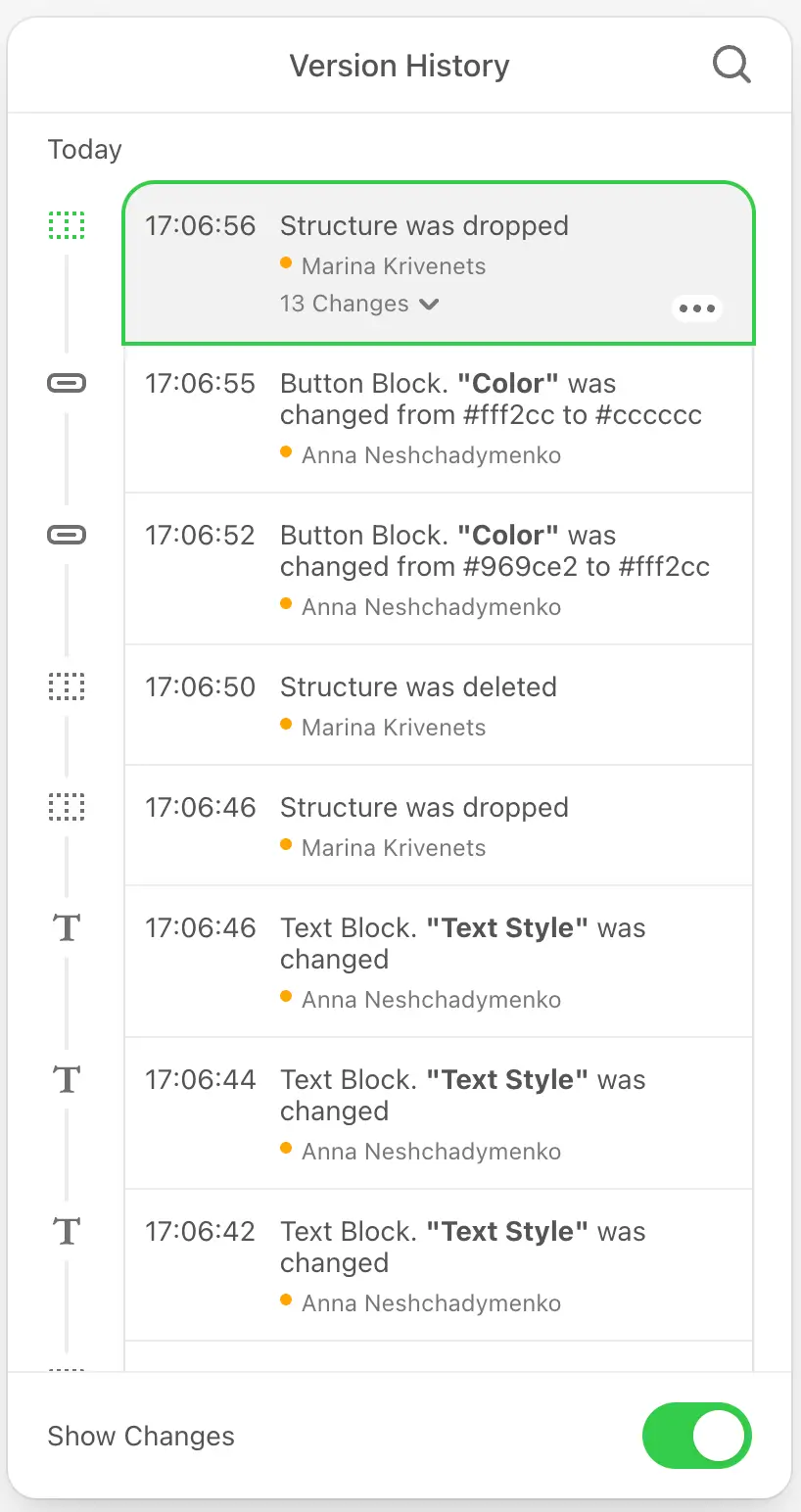
The `versionHistoryApi` provides methods for managing the version history of email templates in the Stripo editor. This API allows users to track changes, undo or redo actions, and restore previous versions of an email template.
Please be advised, that option can be activated or deactivated within the plugin configuration page in your Stripo account, on the Server Settings tab. If the option is disabled, the Version History feature will not be shown or function for any users of the plugin.
If you want to customize who can see and use the Version History feature, you can manage permissions individually using the Stripo User Permissions API.
::: image-wrap
{width=350 height=661}
:::
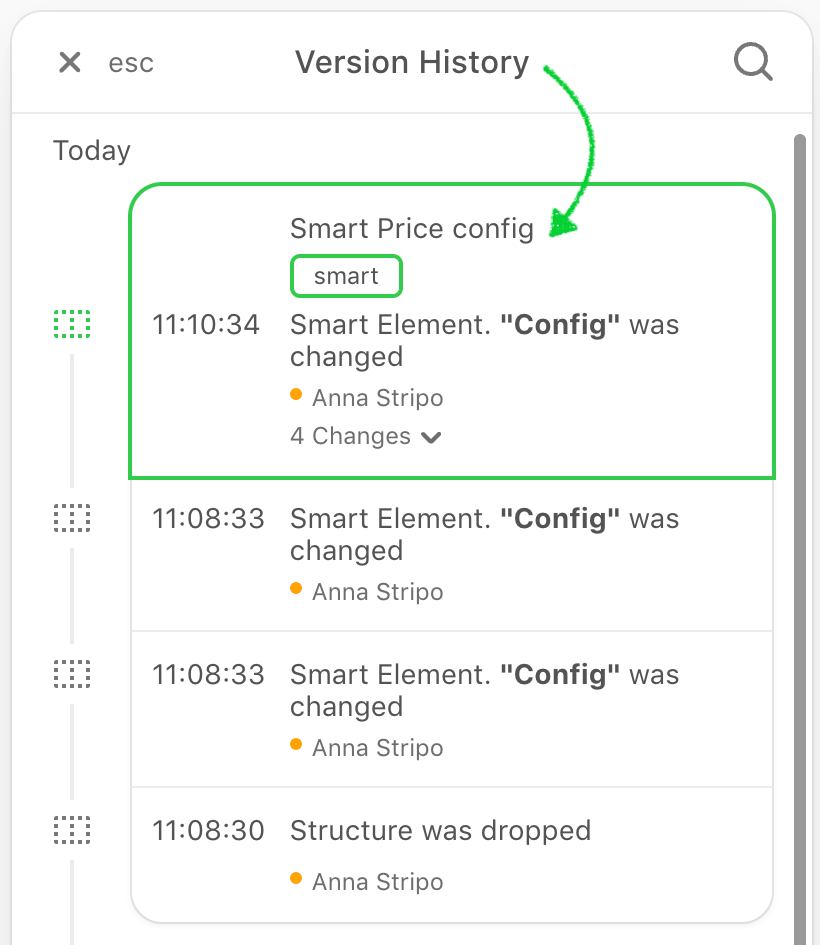
**Version annotations: tags and names.** Every saved version (patch) of an email can carry annotations that your integration manages through this API:
* Tags — up to 20 labels per version, each 1–60 characters. Tags are case-insensitive: adding a duplicate tag is a successful no-op. The same tag can be attached to many versions.
* Name — a single label of 1–60 characters. A version can have only one name, and a name is unique within the email: assigning it to another version releases it from the previous one.
::: image-wrap
{width=350 height=403}
:::
Annotation methods work with already saved versions only — they never trigger `actionsApi.save` and do not touch unsaved local changes. Reading methods require the `versionHistory.read` permission; modifying methods require `versionHistory.write`. If the Version History option is disabled in your Plugin settings, every method below fails with the `VERSION_HISTORY_NOT_ENABLED` error without sending a request.
**Available Methods:**
```js
const onStateChanged = function (state) {
const prevPatch = state.previousPatch
const currentPatch = state.currentPatch
const nextPatch = state.nextPatch
const currentPatchId = currentPatch.id
const currentPatchDate = currentPatch.date
const currentPatchDescription = currentPatch.description
const currentPatchAuthorId = currentPatch.authorId
const currentPatchAuthorName = currentPatch.authorName
}
const onVersionHistoryClosed = function () {}
window.StripoEditorApi.versionHistoryApi.openVersionHistory(onStateChanged, onVersionHistoryClosed)
```
```js
window.StripoEditorApi.versionHistoryApi.closeVersionHistory()
```
```js
window.StripoEditorApi.versionHistoryApi.switchToMobilePreview()
```
```js
window.StripoEditorApi.versionHistoryApi.switchToDesktopPreview()
```
```js
const prevPatch = ...;
window.StripoEditorApi.versionHistoryApi.previewVersion(prevPatch.id, function(error) {
// handle error
});
```
```js
const prevPatch = ...;
window.StripoEditorApi.versionHistoryApi.restoreVersion(prevPatch.id,
function() {
// do something on success
},
function(error) {
// handle error
});
```
```js
window.StripoEditorApi.versionHistoryApi.getLastSavedPatchId(
patchId => console.log('last saved patch:', patchId),
error => console.error(error)
)
```
```js
window.StripoEditorApi.versionHistoryApi.addTag(
{ tag: 'approved', patchId: '869f6f19-9fbd-4e4b-9e61-0ff74b5fa4f9' }, // patchId is optional
result => console.log(result), // { patchId, tag, alreadyExisted }
error => console.error(error)
)
```
```js
window.StripoEditorApi.versionHistoryApi.setName(
{ name: 'release 2.678', patchId: '869f6f19-9fbd-4e4b-9e61-0ff74b5fa4f9' }, // patchId is optional
result => console.log(result), // { patchId, name }
error => console.error(error)
)
```
`getTags`
Returns the tags of the email's versions as a map, where each tag points to the array of version IDs it is attached to.
```js
window.StripoEditorApi.versionHistoryApi.getTags(
{ tagsCount: 10 }, // max number of tags per request
result => console.log(result), // { tags: { approved: ['patch1', 'patch2'] }, totalTagsCount: 1, lastTag: '...' }
error => console.error(error)
)
```
**Pagination:**
* request the first page with `tagsCount` only. If the response contains `lastTag`, there are more results — pass it together with `tagsCount` to fetch the next page. `lastTag` is the real last value of the page (an exclusive boundary); when it is absent, you have reached the end.
* `totalTagsCount` always contains the total number of tags.
Requires the `versionHistory.read` permission. Fails with `VERSION_HISTORY_NOT_ENABLED` when the Version History option is disabled.
`getNames`
Returns the names of the email's versions as a map. A name is unique within the email, so each entry points to a single version ID.
```js
window.StripoEditorApi.versionHistoryApi.getNames(
{ namesCount: 10 }, // max number of names per request
result => console.log(result), // { names: { 'release 2.678': 'patch678' }, totalNamesCount: 1, lastName: '...' }
error => console.error(error)
)
```
**Pagination:**
works the same way as in `getTags` — request the first page with `namesCount`, continue with the returned `lastName` boundary until it is no longer present in the response.
Requires the `versionHistory.read` permission. Fails with `VERSION_HISTORY_NOT_ENABLED` when the Version History option is disabled.
`movePatchName`
Moves an existing name from one version to another — for example, to shift a `production` label to a newer version.
```js
window.StripoEditorApi.versionHistoryApi.movePatchName(
'7caee114-c7a9-4801-bddd-cbae5cbcd568', // sourcePatchId -- the version that currently has the name
'869f6f19-9fbd-4e4b-9e61-0ff74b5fa4f9', // targetPatchId -- the version to receive it
result => console.log(result), // { name, sourcePatchId, targetPatchId, replacedName? }
error => console.error(error)
)
```
**Behavior notes:**
* After a successful call, the source version no longer has a name and the target version carries it.
* If the target version already had a different name, it is overwritten and returned in the result as `replacedName`.
* The call fails if the source version has no name or if source and target are the same version.
* The operation does not open the Version History panel and never triggers a save.
Requires the `versionHistory.write` permission. Fails with `VERSION_HISTORY_NOT_ENABLED` when the Version History option is disabled.
`openVersionHistoryByPatchId`
Opens Version History directly on a specific version. The editor loads the required data for the given `patchId`, rebuilds that version, shows its preview, expands the group the version belongs to, scrolls the panel to it, and highlights its card as selected. Combine it with `getNames` / `getTags` / `getLastSavedPatchId` to open a version found by its annotation without making the user search the history manually.
```js
window.StripoEditorApi.versionHistoryApi.openVersionHistoryByPatchId(
'c6cb4e93-35c2-4b66-b542-1df30bdb976a', // patchId
state => console.log('state:', state), // optional, same shape as in openVersionHistory
() => console.log('history closed'), // optional
error => console.error(error) // optional
)
```
**Behavior notes:**
* The first `onStateChanged` call fires when the target preview is ready, with `state.currentPatch.id` equal to the requested `patchId`; afterwards the callback behaves exactly as in `openVersionHistory`.
* If Version History is already open, the call switches it to the new target version without closing the panel.
* If several calls run concurrently, the latest one wins.
* If the version does not exist, belongs to another email, or is not available to the user, `onFailed` receives `VERSION_HISTORY_PATCH_NOT_FOUND` — the method never falls back to the latest version.
* The regular `openVersionHistory` keeps working as before and opens the latest version.
Requires the `versionHistory.read` permission and an active connection. Fails with `VERSION_HISTORY_NOT_ENABLED` when the Version History option is disabled.
### Restore a Version as a New Email
The **Restore as new** action creates a new email from the selected version without modifying the currently open email.
Unlike `restoreVersion`, this action does not restore content into the current email. The editor only passes the selected `patchID` to your application through the `historySaveAsNew` callback. Your application is responsible for creating a new email ID and copying the selected version to it.
The action is available when:
* the Version History feature is enabled;
* the user has the `versionHistory.write` permission;
* the editor is online;
* the `historySaveAsNew` callback is provided during editor initialization.
If the callback is not provided, the action is hidden. The action is also disabled when the editor is offline or the user does not have write permission.
To obtain patch IDs programmatically (outside the Version History UI), use the Version History API methods described above — for example, `getLastSavedPatchId`, `getNames`, or `getTags`.
#### Configure the callback
Add the `historySaveAsNew` callback to the editor initialization settings:
```js
{
historySaveAsNew: async function({ patchID }, callback) {
try {
const response = await fetch('/api/emails/restore-as-new', {
method: 'POST',
headers: {
'Content-Type': 'application/json'
},
body: JSON.stringify({
sourceId: currentEmailId,
patchId: patchID
})
});
if (!response.ok) {
throw new Error('Failed to restore the version as a new email');
}
const result = await response.json();
callback(null);
// Optional: open the newly created email.
// openEmail(result.destinationId);
} catch (error) {
callback(
error instanceof Error
? error.message
: 'Failed to restore the version as a new email'
);
}
}
}
```
**Callback signature:**
```js
historySaveAsNew?: (
payload: { patchID: string },
callback: (error: string | null) => void
) => void;
```
**Parameters:**
* `patchID` — the UUID of the version selected by the user;
* `callback(null)` — reports successful completion to the editor;
* `callback(errorMessage)` — reports an error to the editor.
The editor displays a success or error notification after the callback is completed. It does not create a new email, modify the current model, or switch the user to another email.
:::custom-warning
Do not call the [Stripo Email Model Clone API](/reference/cloning-an-email-model#description/introduction) directly from the browser. The request requires an API-role authentication token and must be performed by your backend.
:::
#### Copy the selected version on your backend
Your backend should:
1. Create a new email in your system and assign it a unique email ID. This ID becomes `destinationId`.
2. Call `POST /coediting/v1/email/copy` with `sourceId`, `destinationId`, and the received `patchId`.
3. Return `destinationId` to your frontend.
**Example request:**
```bash
curl https://plugins.stripo.email/coediting/v1/email/copy \
--request POST \
--header 'ES-PLUGIN-AUTH: Bearer YOUR_API_ROLE_TOKEN' \
--header 'ES-PLUGIN-UI-DATA: {"emailId":"SOURCE_EMAIL_ID"}' \
--header 'Content-Type: application/json' \
--data '{
"sourceId": "SOURCE_EMAIL_ID",
"destinationId": "NEW_EMAIL_ID",
"patchId": "SELECTED_PATCH_UUID"
}'
```
**Example response:**
```json
{
"destinationId": "NEW_EMAIL_ID"
}
```
When `patchId` is provided, Stripo creates the destination model using the content of the selected historical version. When it is omitted or set to `null`, the current state of the source model is copied.
The source email and its version history remain unchanged.
#### Retrieve HTML and CSS
Creating the model does not trigger an Email Change Notification webhook for the new email. If your application stores email content in its own database, retrieve it explicitly after copying:
```bash
curl https://plugins.stripo.email/coediting/v1/email/html-css \
--request GET \
--header 'ES-PLUGIN-AUTH: Bearer YOUR_API_ROLE_TOKEN' \
--header 'ES-PLUGIN-UI-DATA: {"emailId":"NEW_EMAIL_ID"}'
```
Store the returned HTML and CSS under the new email in your system.
#### Open the new email
By default, we recommend keeping the user in the currently opened email after the copy is created.
If your application needs to open a new email:
1. Make sure all current changes are saved by checking `StripoEditorApi.actionsApi.isAllDataSaved()`.
2. Call `removeEditor()`.
3. Initialize the editor again with `metadata.emailId` set to the new email ID.
Do not use `forceRecreate` for this flow.
#### Limitations and behavior
* `destinationId` must not already exist. Otherwise, the API returns `400 Bad Request`.
* `sourceId` and `destinationId` must not exceed 100 characters.
* `patchId` must be a valid UUID identifying a visible, non-technical version of the source email.
* An invalid, unknown, foreign, hidden, or technical `patchId` returns `400 Bad Request`. The destination model is not partially created.
* The initial version ID `00000000-0000-0000-0000-000000000001` is supported.
* The new model starts with an empty version history.
* Timers contained in the selected version are cloned for the new email.
* If the source email has a Template Theme, the destination uses the source email’s current theme binding and the latest version of that theme. The historical theme state from the selected patch is not restored.
* Each new email ID counts toward the plugin’s unique email quota.
## Code Editor API
The `codeEditorApi` provides methods for interacting with the code editor within the Stripo email editor. This API
allows users to open the code editor, close the code editor, and retrieve the current state of the code editor panel.
```js
const state = window.StripoEditorApi.codeEditorApi.getCodeEditorState()
/*
{
"isOpen": false,
"isDefaultCSSOpen":true,
"isCustomCSSOpen": false,
"containerHeight": 80,
"defaultCSSPanelWidth": 100,
"customCSSPanelWidth": 100
}
*/
```
```js
window.StripoEditorApi.codeEditorApi.openCodeEditor()
```
```js
window.StripoEditorApi.codeEditorApi.closeCodeEditor()
```
## Editor Copilot API
The **Editor Copilot API** allows you to work with the email template markup (HTML and CSS) in a structured and safe way.
Instead of modifying raw HTML or CSS strings, this API exposes **AST-like nodes and modifiers** that are already used internally by Stripo extensions.
The API is available via:
```js
window.StripoEditorApi.editorCopilotApi
```
```js
const templateModifier = window.StripoEditorApi.editorCopilotApi.getTemplateModifier();
```
```js
const htmlRoot = window.StripoEditorApi.editorCopilotApi.getDocumentRootHtmlNode();
```
```js
const cssRoot = window.StripoEditorApi.editorCopilotApi.getDocumentRootCssNode();
```
## UI API
The `uiApi` interface provides methods to control the visibility of UI panels in the Stripo plugin.
```js
window.StripoEditorApi.uiApi.setSettingsPanelVisible(false); // Hides the settings panel
```
```js
window.StripoEditorApi.uiApi.setBlocksPanelVisible(false); // Hides the blocks panel
```
```js
window.StripoEditorApi.uiApi.setActiveGeneralPanelTab(tabId, callback);
```
```json
{ "status": "success" }
```
```json
{
"status": "error",
"code": "TAB_NOT_AVAILABLE",
"message": "Tab \"{tabId}\" is not available or cannot be activated."
}
```
```js
window.StripoEditorApi.uiApi.setActiveGeneralPanelTab('styles', function(result) {
if (result.status === 'success') {
console.log('Tab switched successfully');
} else {
console.error(result.message);
}
});
```
```js
window.StripoEditorApi.uiApi.setActiveGeneralPanelTab('comments');
```
`getActiveGeneralPanelTab`
Returns the identifier of the currently active tab in the **General Settings panel** of the editor.
This method allows external applications to read the current UI state of the General Panel — for example, to build integrations that react to which tab is active without manually tracking tab switches.
**Syntax:**
```js
const tabId = window.StripoEditorApi.uiApi.getActiveGeneralPanelTab();
```
**Return value** *(string)* — Identifier of the currently active tab.
**Possible values:**
* `"letter"` — Message Settings tab
* `"styles"` — General Styles tab
* `"comments"` — Comments tab
* extension tab `id` — identifier defined by an extension with `type: "extensionGeneralTab"`
**Example:**\
Read the active tab:
```js
const activeTab = window.StripoEditorApi.uiApi.getActiveGeneralPanelTab();
console.log('Active tab:', activeTab); // e.g. 'styles'
```
Check the active tab before switching:
```js
if (activeTab !== 'comments') {
window.StripoEditorApi.uiApi.setActiveGeneralPanelTab('comments', function(result) {
if (result.status === 'success') {
console.log('Switched to Comments tab');
}
});
}
```
**Use Cases:**
* **Use Cases: UI State Synchronization**: Keep your application UI controls in sync with the editor's current General Panel tab.
* **Conditional Logic:** Build integrations that react to the currently active tab — for example, showing or hiding application-side controls based on whether the user is in the Styles or Comments tab.
* **Tab Guard:** Check the current tab before calling `setActiveGeneralPanelTab` to avoid redundant tab switches.
**Example: Hiding Panels When Opening Code Editor**
To automatically hide both the settings panel and the blocks panel when opening the code editor, use the following sample implementation:
```js
onCodeEditorVisibilityChanged: function (isCodeEditorVisible) {
window.StripoEditorApi.uiApi.setSettingsPanelVisible(!isCodeEditorVisible);
window.StripoEditorApi.uiApi.setBlocksPanelVisible(!isCodeEditorVisible);
}
```
This ensures that when the code editor is opened, the panels are hidden, and when it is closed, the panels become visible again.
## View Options API
The `viewOptionsApi` allows you to dynamically control how the template is displayed inside the editor. You can use it to respond to changes in your own UI — for example, if you allow your users to toggle preview modes, merge tag visibility, or hide/show elements dynamically. See details [here](/editor-configuration/initialization-settings#view-options).
```js
window.StripoEditorApi.viewOptionsApi.setViewOptions(viewOptions)
```
```js
window.StripoEditorApi.viewOptionsApi.setViewOptions({
mimeType: 'html',
mergeTags: 'label',
showHiddenElements: false,
displayConditions: [
{ id: '1234', name: 'VIP Users', visibility: true },
{ id: '5678', name: 'Beta Testers', visibility: false }
]
});
```
`showPinsInEditor`
Displays all comment pins on the editor canvas. Pins become visible to users in the editing area, allowing them to see comment annotations attached to document elements.
**Note:** This method only affects canvas visibility. Pins in the Comments tab panel remain always visible.
**Sample:**
```js
window.StripoEditorApi.viewOptionsApi.showPinsInEditor()
```
**Details:** This method shows all comment pins that were previously hidden. The pins remain attached to their respective elements and are now visually displayed. This is useful for switching between editing modes where users need to see or ignore comment annotations.
`hidePinsInEditor`
Hides all comment pins from the editor canvas view. Pins remain attached to elements but are not visually displayed on the canvas, providing a distraction-free editing experience.
**Note:** This method only affects canvas visibility. Pins in the Comments tab panel remain always visible.
**Sample:**
```js
window.StripoEditorApi.viewOptionsApi.hidePinsInEditor()
```
**Details:** This method hides all currently visible comment pins. The pins are preserved on their elements and can be shown again by calling `showPinsInEditor()`. This is useful for focused editing or presentation modes where comment annotations should not be visible.
`getPinsEditorState`
Returns the current visibility state of pins on the editor canvas. Use this method to check whether comment pins are currently shown or hidden on the canvas before toggling visibility.
**Note:** This method reflects canvas visibility only, not the Comments tab where pins are always visible.
**Sample:**
```js
const areVisible = window.StripoEditorApi.viewOptionsApi.getPinsEditorState()
```
**Parameters:**
* Return value — `boolean` — `true` if pins are visible in the editor, `false` if pins are hidden.
**Example:**
```js
window.StripoEditorApi.viewOptionsApi.getPinsEditorState()
// Returns: true (pins are visible)
// Toggle pin visibility based on current state
const currentState = window.StripoEditorApi.viewOptionsApi.getPinsEditorState()
if (currentState) {
window.StripoEditorApi.viewOptionsApi.hidePinsInEditor()
} else {
window.StripoEditorApi.viewOptionsApi.showPinsInEditor()
}
```
**Details:** You can call this method to determine the current pin visibility before performing conditional logic. This method does not change the editor state — it only reports the current visibility status. Use it in combination with `showPinsInEditor()` and `hidePinsInEditor()` to implement toggle functionality
## **Comments API**
Used to manage comments in the editor. Methods allow developers to programmatically trigger comment creation mode and check comment system status.
`addComment`
Activates comment creation mode in the editor. The cursor changes to a crosshair, prompting the user to select a document element for adding a comment. Once an element is selected, the comment creation dialog appears with permission checks applied based on the user's role.
**Sample:**
```js
window.StripoEditorApi.commentsApi.addComment()
```
**Behavior**.
When `addComment()` is called:
* Editor enters comment mode with crosshair cursor active.
* User can click on any document element to attach a comment.
* Comment dialog opens with selected element context.
* Permission validation occurs — if user lacks comment creation rights, multilingual error message displays.
* User can type and submit comment, or cancel the operation.
**Error Handling**\
If the user doesn't have permission to add comments, error messages appear in the user's language through the [notifications](/editor-configuration/initialization-settings#notification-settings) parameter.
**Example:**
```js
// Trigger comment mode from custom UI button
document.getElementById('addCommentBtn').addEventListener('click', () => {
window.StripoEditorApi.commentsApi.addComment()
})
// User clicks on an image element → comment dialog opens
// User types comment → comment is saved with element reference
```
**Details:** Use this method to create custom "Add Comment" triggers in your application UI. The method respects role-based permissions automatically. If permissions validation fails, the appropriate error message is shown without entering comment mode.
## Template Theme Mode API
The `templateThemeModeApi` allows you to dynamically control how the **email template is rendered inside the editor canvas** — in **Light** or **Dark** mode.
You can use this API to synchronize template rendering with your application UI, allow users to toggle between light and dark views, or apply theme changes dynamically without reloading the editor.
See details [here](/editor-configuration/initialization-settings#template-theme-mode).
`setTemplateThemeMode`
Updates the template rendering mode inside the editor.
Use this method when users interact with your UI controls (for example, a Light / Dark toggle) and you want to immediately update how the email template is displayed.
**Sample**
```js
StripoEditorApi.templateThemeModeApi.setTemplateThemeMode(templateThemeMode);
```
**Parameters:**
* **templateThemeMode** — one of the following values:
* `'LIGHT'` — renders the template in light mode.
* `'DARK'` — renders the template in dark mode.
**Example:**
```js
StripoEditorApi.templateThemeModeApi.setTemplateThemeMode('DARK');
```
**Details:**
* The change is applied immediately.
* The editor is not reinitialized.
* The email HTML, styles, and export output remain unchanged.
`getThemeMode`
Returns the currently active template theme mode.
**Sample**
```js
StripoEditorApi.templateThemeModeApi.getThemeMode();
```
**Example**
```js
const mode =
StripoEditorApi.templateThemeModeApi.getThemeMode();
console.log(mode); // 'LIGHT' or 'DARK'
```
**Details:**
* This method can be used to synchronize your UI state with the editor.
* Useful when restoring UI controls or reacting to external state changes.
## Modules API
The `modulesApi` provides methods for working with modules when the editor runs in [Module Editing Mode](/editor-configuration/module-editing-mode) `entityType: 'module'`. It lets your application open the module details dialog programmatically — for example, from a custom "Show module data" button in your interface.
The `openModuleDetailsDialog` method opens the module details dialog, where the module metadata (name, description, category, tags) is displayed and edited. It mirrors the module details panel available in email mode.
**Sample:**
```js
window.StripoEditorApi.modulesApi.openModuleDetailsDialog();
```
**Use Cases:**
Custom "Show module data" button: Add a button in your application UI that opens the module details dialog on click. Available in Module Editing Mode: Use this method when the editor is initialized with `entityType: 'module`'.
## Dev Tools API
The `devToolsApi` provides methods for interacting with developer tools of the Stripo editor. This API facilitates the handling of exceptional situations and issues with the editor.
```js
window.StripoEditorApi.devToolsApi.dump()
```
`);
console.table([...result.links, ...result.images, ...result.unidentified]
.map(({category, value, status, issue}) => ({category, value, status, issue})));
```
**Use Cases**
* **Quick Offline Check:**\
Validate a saved HTML version of the email without compiling it again.
## Version History API
The `versionHistoryApi` provides methods for managing the version history of email templates in the Stripo editor. This API allows users to track changes, undo or redo actions, and restore previous versions of an email template.
Please be advised, that option can be activated or deactivated within the plugin configuration page in your Stripo account, on the Server Settings tab. If the option is disabled, the Version History feature will not be shown or function for any users of the plugin.
If you want to customize who can see and use the Version History feature, you can manage permissions individually using the Stripo User Permissions API.
::: image-wrap
{width=350 height=661}
:::
**Version annotations: tags and names.** Every saved version (patch) of an email can carry annotations that your integration manages through this API:
* Tags — up to 20 labels per version, each 1–60 characters. Tags are case-insensitive: adding a duplicate tag is a successful no-op. The same tag can be attached to many versions.
* Name — a single label of 1–60 characters. A version can have only one name, and a name is unique within the email: assigning it to another version releases it from the previous one.
::: image-wrap
{width=350 height=403}
:::
Annotation methods work with already saved versions only — they never trigger `actionsApi.save` and do not touch unsaved local changes. Reading methods require the `versionHistory.read` permission; modifying methods require `versionHistory.write`. If the Version History option is disabled in your Plugin settings, every method below fails with the `VERSION_HISTORY_NOT_ENABLED` error without sending a request.
**Available Methods:**
```js
const onStateChanged = function (state) {
const prevPatch = state.previousPatch
const currentPatch = state.currentPatch
const nextPatch = state.nextPatch
const currentPatchId = currentPatch.id
const currentPatchDate = currentPatch.date
const currentPatchDescription = currentPatch.description
const currentPatchAuthorId = currentPatch.authorId
const currentPatchAuthorName = currentPatch.authorName
}
const onVersionHistoryClosed = function () {}
window.StripoEditorApi.versionHistoryApi.openVersionHistory(onStateChanged, onVersionHistoryClosed)
```
```js
window.StripoEditorApi.versionHistoryApi.closeVersionHistory()
```
```js
window.StripoEditorApi.versionHistoryApi.switchToMobilePreview()
```
```js
window.StripoEditorApi.versionHistoryApi.switchToDesktopPreview()
```
```js
const prevPatch = ...;
window.StripoEditorApi.versionHistoryApi.previewVersion(prevPatch.id, function(error) {
// handle error
});
```
```js
const prevPatch = ...;
window.StripoEditorApi.versionHistoryApi.restoreVersion(prevPatch.id,
function() {
// do something on success
},
function(error) {
// handle error
});
```
```js
window.StripoEditorApi.versionHistoryApi.getLastSavedPatchId(
patchId => console.log('last saved patch:', patchId),
error => console.error(error)
)
```
```js
window.StripoEditorApi.versionHistoryApi.addTag(
{ tag: 'approved', patchId: '869f6f19-9fbd-4e4b-9e61-0ff74b5fa4f9' }, // patchId is optional
result => console.log(result), // { patchId, tag, alreadyExisted }
error => console.error(error)
)
```
```js
window.StripoEditorApi.versionHistoryApi.setName(
{ name: 'release 2.678', patchId: '869f6f19-9fbd-4e4b-9e61-0ff74b5fa4f9' }, // patchId is optional
result => console.log(result), // { patchId, name }
error => console.error(error)
)
```
`getTags`
Returns the tags of the email's versions as a map, where each tag points to the array of version IDs it is attached to.
```js
window.StripoEditorApi.versionHistoryApi.getTags(
{ tagsCount: 10 }, // max number of tags per request
result => console.log(result), // { tags: { approved: ['patch1', 'patch2'] }, totalTagsCount: 1, lastTag: '...' }
error => console.error(error)
)
```
**Pagination:**
* request the first page with `tagsCount` only. If the response contains `lastTag`, there are more results — pass it together with `tagsCount` to fetch the next page. `lastTag` is the real last value of the page (an exclusive boundary); when it is absent, you have reached the end.
* `totalTagsCount` always contains the total number of tags.
Requires the `versionHistory.read` permission. Fails with `VERSION_HISTORY_NOT_ENABLED` when the Version History option is disabled.
`getNames`
Returns the names of the email's versions as a map. A name is unique within the email, so each entry points to a single version ID.
```js
window.StripoEditorApi.versionHistoryApi.getNames(
{ namesCount: 10 }, // max number of names per request
result => console.log(result), // { names: { 'release 2.678': 'patch678' }, totalNamesCount: 1, lastName: '...' }
error => console.error(error)
)
```
**Pagination:**
works the same way as in `getTags` — request the first page with `namesCount`, continue with the returned `lastName` boundary until it is no longer present in the response.
Requires the `versionHistory.read` permission. Fails with `VERSION_HISTORY_NOT_ENABLED` when the Version History option is disabled.
`movePatchName`
Moves an existing name from one version to another — for example, to shift a `production` label to a newer version.
```js
window.StripoEditorApi.versionHistoryApi.movePatchName(
'7caee114-c7a9-4801-bddd-cbae5cbcd568', // sourcePatchId -- the version that currently has the name
'869f6f19-9fbd-4e4b-9e61-0ff74b5fa4f9', // targetPatchId -- the version to receive it
result => console.log(result), // { name, sourcePatchId, targetPatchId, replacedName? }
error => console.error(error)
)
```
**Behavior notes:**
* After a successful call, the source version no longer has a name and the target version carries it.
* If the target version already had a different name, it is overwritten and returned in the result as `replacedName`.
* The call fails if the source version has no name or if source and target are the same version.
* The operation does not open the Version History panel and never triggers a save.
Requires the `versionHistory.write` permission. Fails with `VERSION_HISTORY_NOT_ENABLED` when the Version History option is disabled.
`openVersionHistoryByPatchId`
Opens Version History directly on a specific version. The editor loads the required data for the given `patchId`, rebuilds that version, shows its preview, expands the group the version belongs to, scrolls the panel to it, and highlights its card as selected. Combine it with `getNames` / `getTags` / `getLastSavedPatchId` to open a version found by its annotation without making the user search the history manually.
```js
window.StripoEditorApi.versionHistoryApi.openVersionHistoryByPatchId(
'c6cb4e93-35c2-4b66-b542-1df30bdb976a', // patchId
state => console.log('state:', state), // optional, same shape as in openVersionHistory
() => console.log('history closed'), // optional
error => console.error(error) // optional
)
```
**Behavior notes:**
* The first `onStateChanged` call fires when the target preview is ready, with `state.currentPatch.id` equal to the requested `patchId`; afterwards the callback behaves exactly as in `openVersionHistory`.
* If Version History is already open, the call switches it to the new target version without closing the panel.
* If several calls run concurrently, the latest one wins.
* If the version does not exist, belongs to another email, or is not available to the user, `onFailed` receives `VERSION_HISTORY_PATCH_NOT_FOUND` — the method never falls back to the latest version.
* The regular `openVersionHistory` keeps working as before and opens the latest version.
Requires the `versionHistory.read` permission and an active connection. Fails with `VERSION_HISTORY_NOT_ENABLED` when the Version History option is disabled.
### Restore a Version as a New Email
The **Restore as new** action creates a new email from the selected version without modifying the currently open email.
Unlike `restoreVersion`, this action does not restore content into the current email. The editor only passes the selected `patchID` to your application through the `historySaveAsNew` callback. Your application is responsible for creating a new email ID and copying the selected version to it.
The action is available when:
* the Version History feature is enabled;
* the user has the `versionHistory.write` permission;
* the editor is online;
* the `historySaveAsNew` callback is provided during editor initialization.
If the callback is not provided, the action is hidden. The action is also disabled when the editor is offline or the user does not have write permission.
To obtain patch IDs programmatically (outside the Version History UI), use the Version History API methods described above — for example, `getLastSavedPatchId`, `getNames`, or `getTags`.
#### Configure the callback
Add the `historySaveAsNew` callback to the editor initialization settings:
```js
{
historySaveAsNew: async function({ patchID }, callback) {
try {
const response = await fetch('/api/emails/restore-as-new', {
method: 'POST',
headers: {
'Content-Type': 'application/json'
},
body: JSON.stringify({
sourceId: currentEmailId,
patchId: patchID
})
});
if (!response.ok) {
throw new Error('Failed to restore the version as a new email');
}
const result = await response.json();
callback(null);
// Optional: open the newly created email.
// openEmail(result.destinationId);
} catch (error) {
callback(
error instanceof Error
? error.message
: 'Failed to restore the version as a new email'
);
}
}
}
```
**Callback signature:**
```js
historySaveAsNew?: (
payload: { patchID: string },
callback: (error: string | null) => void
) => void;
```
**Parameters:**
* `patchID` — the UUID of the version selected by the user;
* `callback(null)` — reports successful completion to the editor;
* `callback(errorMessage)` — reports an error to the editor.
The editor displays a success or error notification after the callback is completed. It does not create a new email, modify the current model, or switch the user to another email.
:::custom-warning
Do not call the [Stripo Email Model Clone API](/reference/cloning-an-email-model#description/introduction) directly from the browser. The request requires an API-role authentication token and must be performed by your backend.
:::
#### Copy the selected version on your backend
Your backend should:
1. Create a new email in your system and assign it a unique email ID. This ID becomes `destinationId`.
2. Call `POST /coediting/v1/email/copy` with `sourceId`, `destinationId`, and the received `patchId`.
3. Return `destinationId` to your frontend.
**Example request:**
```bash
curl https://plugins.stripo.email/coediting/v1/email/copy \
--request POST \
--header 'ES-PLUGIN-AUTH: Bearer YOUR_API_ROLE_TOKEN' \
--header 'ES-PLUGIN-UI-DATA: {"emailId":"SOURCE_EMAIL_ID"}' \
--header 'Content-Type: application/json' \
--data '{
"sourceId": "SOURCE_EMAIL_ID",
"destinationId": "NEW_EMAIL_ID",
"patchId": "SELECTED_PATCH_UUID"
}'
```
**Example response:**
```json
{
"destinationId": "NEW_EMAIL_ID"
}
```
When `patchId` is provided, Stripo creates the destination model using the content of the selected historical version. When it is omitted or set to `null`, the current state of the source model is copied.
The source email and its version history remain unchanged.
#### Retrieve HTML and CSS
Creating the model does not trigger an Email Change Notification webhook for the new email. If your application stores email content in its own database, retrieve it explicitly after copying:
```bash
curl https://plugins.stripo.email/coediting/v1/email/html-css \
--request GET \
--header 'ES-PLUGIN-AUTH: Bearer YOUR_API_ROLE_TOKEN' \
--header 'ES-PLUGIN-UI-DATA: {"emailId":"NEW_EMAIL_ID"}'
```
Store the returned HTML and CSS under the new email in your system.
#### Open the new email
By default, we recommend keeping the user in the currently opened email after the copy is created.
If your application needs to open a new email:
1. Make sure all current changes are saved by checking `StripoEditorApi.actionsApi.isAllDataSaved()`.
2. Call `removeEditor()`.
3. Initialize the editor again with `metadata.emailId` set to the new email ID.
Do not use `forceRecreate` for this flow.
#### Limitations and behavior
* `destinationId` must not already exist. Otherwise, the API returns `400 Bad Request`.
* `sourceId` and `destinationId` must not exceed 100 characters.
* `patchId` must be a valid UUID identifying a visible, non-technical version of the source email.
* An invalid, unknown, foreign, hidden, or technical `patchId` returns `400 Bad Request`. The destination model is not partially created.
* The initial version ID `00000000-0000-0000-0000-000000000001` is supported.
* The new model starts with an empty version history.
* Timers contained in the selected version are cloned for the new email.
* If the source email has a Template Theme, the destination uses the source email’s current theme binding and the latest version of that theme. The historical theme state from the selected patch is not restored.
* Each new email ID counts toward the plugin’s unique email quota.
## Code Editor API
The `codeEditorApi` provides methods for interacting with the code editor within the Stripo email editor. This API
allows users to open the code editor, close the code editor, and retrieve the current state of the code editor panel.
```js
const state = window.StripoEditorApi.codeEditorApi.getCodeEditorState()
/*
{
"isOpen": false,
"isDefaultCSSOpen":true,
"isCustomCSSOpen": false,
"containerHeight": 80,
"defaultCSSPanelWidth": 100,
"customCSSPanelWidth": 100
}
*/
```
```js
window.StripoEditorApi.codeEditorApi.openCodeEditor()
```
```js
window.StripoEditorApi.codeEditorApi.closeCodeEditor()
```
## Editor Copilot API
The **Editor Copilot API** allows you to work with the email template markup (HTML and CSS) in a structured and safe way.
Instead of modifying raw HTML or CSS strings, this API exposes **AST-like nodes and modifiers** that are already used internally by Stripo extensions.
The API is available via:
```js
window.StripoEditorApi.editorCopilotApi
```
```js
const templateModifier = window.StripoEditorApi.editorCopilotApi.getTemplateModifier();
```
```js
const htmlRoot = window.StripoEditorApi.editorCopilotApi.getDocumentRootHtmlNode();
```
```js
const cssRoot = window.StripoEditorApi.editorCopilotApi.getDocumentRootCssNode();
```
## UI API
The `uiApi` interface provides methods to control the visibility of UI panels in the Stripo plugin.
```js
window.StripoEditorApi.uiApi.setSettingsPanelVisible(false); // Hides the settings panel
```
```js
window.StripoEditorApi.uiApi.setBlocksPanelVisible(false); // Hides the blocks panel
```
```js
window.StripoEditorApi.uiApi.setActiveGeneralPanelTab(tabId, callback);
```
```json
{ "status": "success" }
```
```json
{
"status": "error",
"code": "TAB_NOT_AVAILABLE",
"message": "Tab \"{tabId}\" is not available or cannot be activated."
}
```
```js
window.StripoEditorApi.uiApi.setActiveGeneralPanelTab('styles', function(result) {
if (result.status === 'success') {
console.log('Tab switched successfully');
} else {
console.error(result.message);
}
});
```
```js
window.StripoEditorApi.uiApi.setActiveGeneralPanelTab('comments');
```
`getActiveGeneralPanelTab`
Returns the identifier of the currently active tab in the **General Settings panel** of the editor.
This method allows external applications to read the current UI state of the General Panel — for example, to build integrations that react to which tab is active without manually tracking tab switches.
**Syntax:**
```js
const tabId = window.StripoEditorApi.uiApi.getActiveGeneralPanelTab();
```
**Return value** *(string)* — Identifier of the currently active tab.
**Possible values:**
* `"letter"` — Message Settings tab
* `"styles"` — General Styles tab
* `"comments"` — Comments tab
* extension tab `id` — identifier defined by an extension with `type: "extensionGeneralTab"`
**Example:**\
Read the active tab:
```js
const activeTab = window.StripoEditorApi.uiApi.getActiveGeneralPanelTab();
console.log('Active tab:', activeTab); // e.g. 'styles'
```
Check the active tab before switching:
```js
if (activeTab !== 'comments') {
window.StripoEditorApi.uiApi.setActiveGeneralPanelTab('comments', function(result) {
if (result.status === 'success') {
console.log('Switched to Comments tab');
}
});
}
```
**Use Cases:**
* **Use Cases: UI State Synchronization**: Keep your application UI controls in sync with the editor's current General Panel tab.
* **Conditional Logic:** Build integrations that react to the currently active tab — for example, showing or hiding application-side controls based on whether the user is in the Styles or Comments tab.
* **Tab Guard:** Check the current tab before calling `setActiveGeneralPanelTab` to avoid redundant tab switches.
**Example: Hiding Panels When Opening Code Editor**
To automatically hide both the settings panel and the blocks panel when opening the code editor, use the following sample implementation:
```js
onCodeEditorVisibilityChanged: function (isCodeEditorVisible) {
window.StripoEditorApi.uiApi.setSettingsPanelVisible(!isCodeEditorVisible);
window.StripoEditorApi.uiApi.setBlocksPanelVisible(!isCodeEditorVisible);
}
```
This ensures that when the code editor is opened, the panels are hidden, and when it is closed, the panels become visible again.
## View Options API
The `viewOptionsApi` allows you to dynamically control how the template is displayed inside the editor. You can use it to respond to changes in your own UI — for example, if you allow your users to toggle preview modes, merge tag visibility, or hide/show elements dynamically. See details [here](/editor-configuration/initialization-settings#view-options).
```js
window.StripoEditorApi.viewOptionsApi.setViewOptions(viewOptions)
```
```js
window.StripoEditorApi.viewOptionsApi.setViewOptions({
mimeType: 'html',
mergeTags: 'label',
showHiddenElements: false,
displayConditions: [
{ id: '1234', name: 'VIP Users', visibility: true },
{ id: '5678', name: 'Beta Testers', visibility: false }
]
});
```
`showPinsInEditor`
Displays all comment pins on the editor canvas. Pins become visible to users in the editing area, allowing them to see comment annotations attached to document elements.
**Note:** This method only affects canvas visibility. Pins in the Comments tab panel remain always visible.
**Sample:**
```js
window.StripoEditorApi.viewOptionsApi.showPinsInEditor()
```
**Details:** This method shows all comment pins that were previously hidden. The pins remain attached to their respective elements and are now visually displayed. This is useful for switching between editing modes where users need to see or ignore comment annotations.
`hidePinsInEditor`
Hides all comment pins from the editor canvas view. Pins remain attached to elements but are not visually displayed on the canvas, providing a distraction-free editing experience.
**Note:** This method only affects canvas visibility. Pins in the Comments tab panel remain always visible.
**Sample:**
```js
window.StripoEditorApi.viewOptionsApi.hidePinsInEditor()
```
**Details:** This method hides all currently visible comment pins. The pins are preserved on their elements and can be shown again by calling `showPinsInEditor()`. This is useful for focused editing or presentation modes where comment annotations should not be visible.
`getPinsEditorState`
Returns the current visibility state of pins on the editor canvas. Use this method to check whether comment pins are currently shown or hidden on the canvas before toggling visibility.
**Note:** This method reflects canvas visibility only, not the Comments tab where pins are always visible.
**Sample:**
```js
const areVisible = window.StripoEditorApi.viewOptionsApi.getPinsEditorState()
```
**Parameters:**
* Return value — `boolean` — `true` if pins are visible in the editor, `false` if pins are hidden.
**Example:**
```js
window.StripoEditorApi.viewOptionsApi.getPinsEditorState()
// Returns: true (pins are visible)
// Toggle pin visibility based on current state
const currentState = window.StripoEditorApi.viewOptionsApi.getPinsEditorState()
if (currentState) {
window.StripoEditorApi.viewOptionsApi.hidePinsInEditor()
} else {
window.StripoEditorApi.viewOptionsApi.showPinsInEditor()
}
```
**Details:** You can call this method to determine the current pin visibility before performing conditional logic. This method does not change the editor state — it only reports the current visibility status. Use it in combination with `showPinsInEditor()` and `hidePinsInEditor()` to implement toggle functionality
## **Comments API**
Used to manage comments in the editor. Methods allow developers to programmatically trigger comment creation mode and check comment system status.
`addComment`
Activates comment creation mode in the editor. The cursor changes to a crosshair, prompting the user to select a document element for adding a comment. Once an element is selected, the comment creation dialog appears with permission checks applied based on the user's role.
**Sample:**
```js
window.StripoEditorApi.commentsApi.addComment()
```
**Behavior**.
When `addComment()` is called:
* Editor enters comment mode with crosshair cursor active.
* User can click on any document element to attach a comment.
* Comment dialog opens with selected element context.
* Permission validation occurs — if user lacks comment creation rights, multilingual error message displays.
* User can type and submit comment, or cancel the operation.
**Error Handling**\
If the user doesn't have permission to add comments, error messages appear in the user's language through the [notifications](/editor-configuration/initialization-settings#notification-settings) parameter.
**Example:**
```js
// Trigger comment mode from custom UI button
document.getElementById('addCommentBtn').addEventListener('click', () => {
window.StripoEditorApi.commentsApi.addComment()
})
// User clicks on an image element → comment dialog opens
// User types comment → comment is saved with element reference
```
**Details:** Use this method to create custom "Add Comment" triggers in your application UI. The method respects role-based permissions automatically. If permissions validation fails, the appropriate error message is shown without entering comment mode.
## Template Theme Mode API
The `templateThemeModeApi` allows you to dynamically control how the **email template is rendered inside the editor canvas** — in **Light** or **Dark** mode.
You can use this API to synchronize template rendering with your application UI, allow users to toggle between light and dark views, or apply theme changes dynamically without reloading the editor.
See details [here](/editor-configuration/initialization-settings#template-theme-mode).
`setTemplateThemeMode`
Updates the template rendering mode inside the editor.
Use this method when users interact with your UI controls (for example, a Light / Dark toggle) and you want to immediately update how the email template is displayed.
**Sample**
```js
StripoEditorApi.templateThemeModeApi.setTemplateThemeMode(templateThemeMode);
```
**Parameters:**
* **templateThemeMode** — one of the following values:
* `'LIGHT'` — renders the template in light mode.
* `'DARK'` — renders the template in dark mode.
**Example:**
```js
StripoEditorApi.templateThemeModeApi.setTemplateThemeMode('DARK');
```
**Details:**
* The change is applied immediately.
* The editor is not reinitialized.
* The email HTML, styles, and export output remain unchanged.
`getThemeMode`
Returns the currently active template theme mode.
**Sample**
```js
StripoEditorApi.templateThemeModeApi.getThemeMode();
```
**Example**
```js
const mode =
StripoEditorApi.templateThemeModeApi.getThemeMode();
console.log(mode); // 'LIGHT' or 'DARK'
```
**Details:**
* This method can be used to synchronize your UI state with the editor.
* Useful when restoring UI controls or reacting to external state changes.
## Modules API
The `modulesApi` provides methods for working with modules when the editor runs in [Module Editing Mode](/editor-configuration/module-editing-mode) `entityType: 'module'`. It lets your application open the module details dialog programmatically — for example, from a custom "Show module data" button in your interface.
The `openModuleDetailsDialog` method opens the module details dialog, where the module metadata (name, description, category, tags) is displayed and edited. It mirrors the module details panel available in email mode.
**Sample:**
```js
window.StripoEditorApi.modulesApi.openModuleDetailsDialog();
```
**Use Cases:**
Custom "Show module data" button: Add a button in your application UI that opens the module details dialog on click. Available in Module Editing Mode: Use this method when the editor is initialized with `entityType: 'module`'.
## Dev Tools API
The `devToolsApi` provides methods for interacting with developer tools of the Stripo editor. This API facilitates the handling of exceptional situations and issues with the editor.
```js
window.StripoEditorApi.devToolsApi.dump()
```