
Accessibility Checker
Supported since plugin version 2.59.0
The Accessibility Checker lets users evaluate email templates for accessibility issues directly in the editor. It helps ensure that emails are readable and usable for people with visual impairments and other accessibility needs.
The feature provides a dedicated Accessibility Testing Mode that lets users inspect the email under different accessibility scenarios and identify potential issues before sending the campaign.
With Accessibility Testing Mode, users can:
- analyze accessibility issues in the email layout;
- simulate different types of color vision deficiencies;
- hide images to verify how the email behaves without them;
- preview the email in mobile or desktop layouts during testing;
- inspect the email HTML through the code editor if necessary.
You can learn more about the accessibility feature in our article.
How It Works
When the Accessibility Checker is activated, the editor switches to Accessibility Testing Mode.
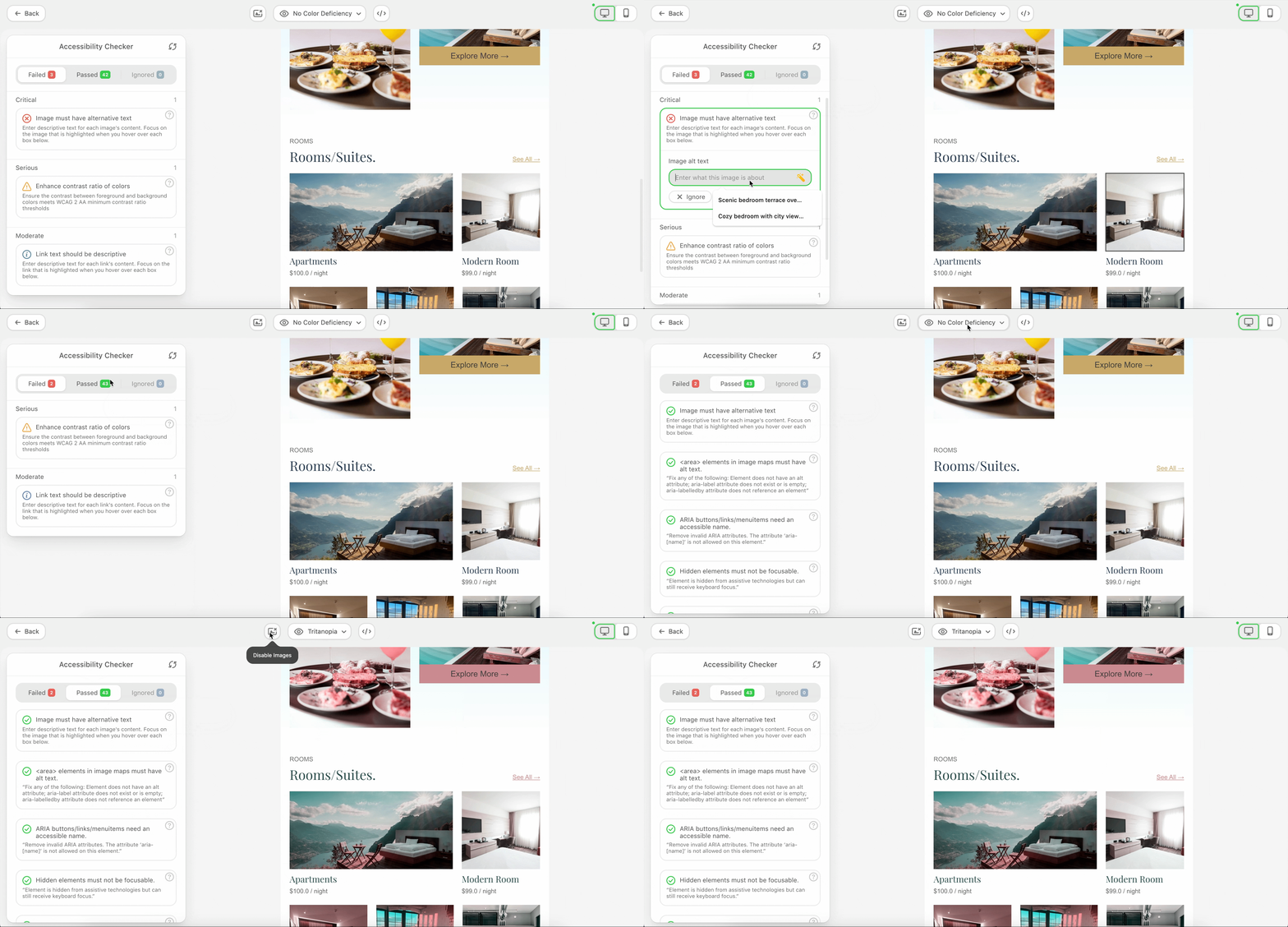
In this mode:
- the email is displayed in a testing environment designed to highlight accessibility issues;
- users can simulate different visual impairments using color vision filters;
- users can temporarily hide images to verify whether the email content remains understandable;
- the preview can be switched between mobile and desktop layouts.
Accessibility Testing Mode does not modify the email content automatically.
Instead, it provides visual tools that help users identify potential accessibility problems and fix them manually.
Please be advised, the controls used to manage this mode (such as switching previews, hiding images, or applying color vision filters) are not part of the plugin UI itself. These controls can be implemented in the host application interface (for example, in a custom header panel).
To support such integrations, the plugin provides additional API methods that allow plugin owners to connect their own UI controls to the Accessibility Testing functionality.
How to Activate
Accessibility Testing Mode can be opened either through the editor interface or programmatically using the JavaScript API.
To start accessibility testing via API:
js
window.StripoEditorApi.accessibilityApi.openAccessibilityTestingMode();To exit the testing mode and return to the regular editing mode:
js
window.StripoEditorApi.accessibilityApi.closeAccessibilityTestingMode();The Accessibility API provides additional capabilities for controlling the testing environment, such as simulating color vision deficiencies, hiding images, or switching between mobile and desktop previews.
For the complete list of available methods and usage examples, see the Controlling Accessibility Testing via API section.
Permissions
Accessibility Checker introduces a new permission key:
accessibilityTesting
This permission controls whether users can access Accessibility Testing Mode and whether they are allowed to modify the email while testing accessibility.
This permission controls whether users can access Accessibility Testing Mode and whether they are allowed to modify the email while testing accessibility.
| Permission | Description |
|---|---|
read | Allows the user to open Accessibility Testing Mode. |
write | Allows editing the email while Accessibility Testing Mode is active. |
Example configuration:
js
{
 "accessibilityTesting": {
   "read": true,
   "write": true
 }
}
If the permissions checker is not configured, both values default to true.
See the Permissions and Access Management section for details about configuring permissions.
Controlling Accessibility Testing via API
The Accessibility Checker can be controlled programmatically using the Accessibility API.
This API allows your application to:
- open or close Accessibility Testing Mode;
- simulate color vision deficiencies;
- hide or show images in the preview;
- switch between mobile and desktop previews;
- open the code editor while testing accessibility.
All methods are available through:
window.StripoEditorApi.accessibilityApi
For the full list of available methods, see the Accessibility API section