
Template Themes
Supported since plugin version 2.84.0
Template Themes let your users save the general styles of an email as a named theme and reuse it across other emails. A theme stores the email background and general settings, stripe styles (header, content, footer), heading styles, button styles, and their light and dark mode variants. It does not store email content or the styles that were set manually on individual blocks.
When a theme changes, every email linked to it picks up the new styles the next time it is opened or compiled. This keeps the brand consistent across all emails without editing them one by one.
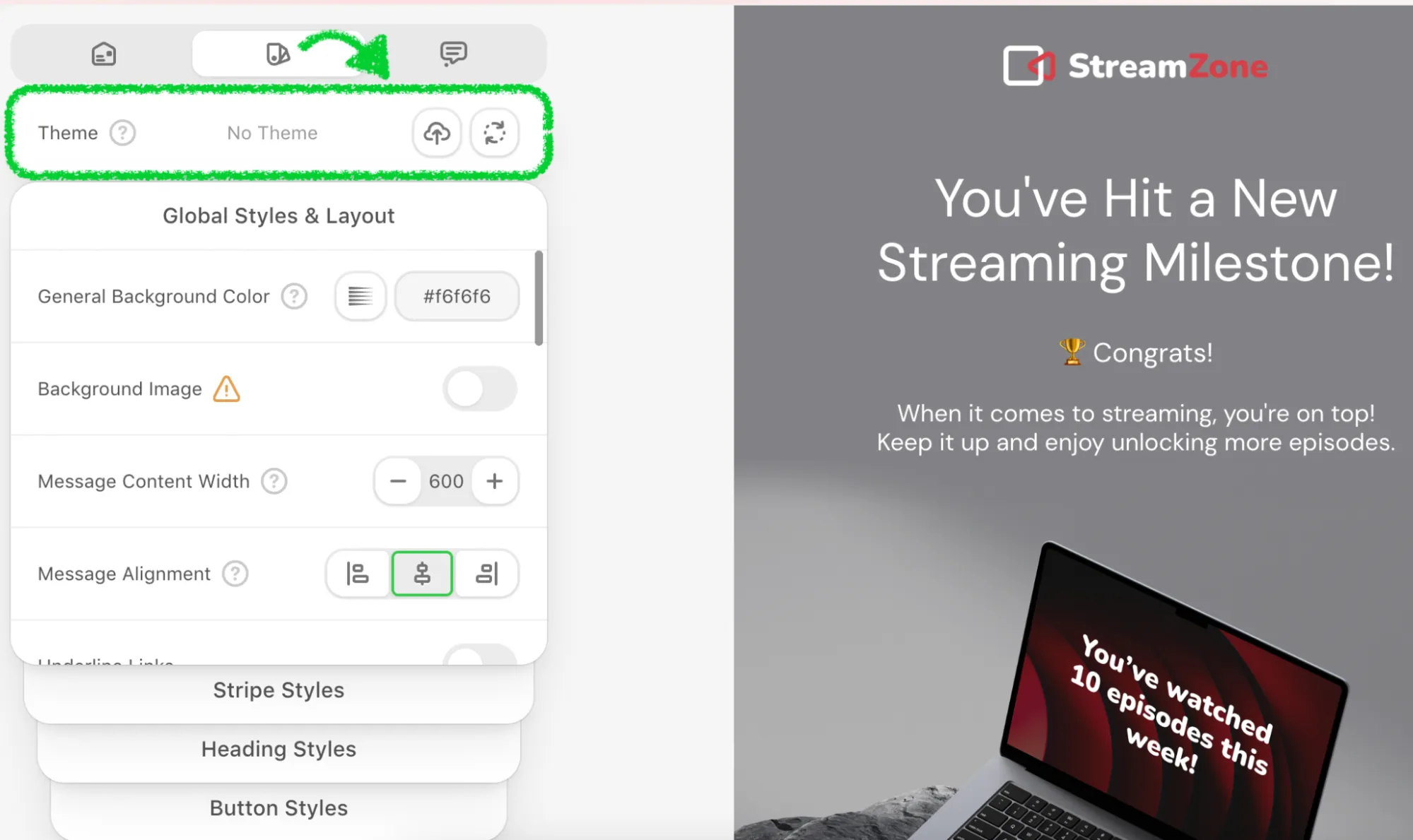
When enabled in your Plugin settings, the feature adds a Theme block at the top of the General Styles panel of the editor.
How It Works
A theme is a shared resource. All users whose editors resolve the same themes key see the same list of themes and can apply any of them.
In the Theme block, users can:
- Create theme — save the current general styles of the email as a new theme and apply it to the email;
- Select theme — open the list of available themes and apply one by clicking its card. The list shows a preview of each theme;
- Edit theme — change the styles of the applied theme. The changes are saved to the theme itself, so every linked email receives them;
- Save as new — save the current styles as a new theme instead of changing the applied one;
- Replace — switch the email to another theme;
- No Theme — detach the theme. The email keeps its current styles, but it no longer follows the theme;
- Delete — delete a theme from the 3dots menu of its card in the list. The theme is removed for everyone, and all emails that used it are detached.
There is no limit on the number of themes you can create.
While a theme is applied, the General Styles controls are locked. To change them, the user presses Edit theme (changes go to the theme) or No Theme (the email becomes independent).
When an email with a theme is opened and the theme has changed since the last visit, the editor updates the email styles to the current version of the theme automatically. If the styles of an open email stop matching its theme (for example, after undo), the panel shows Save changes to theme and Revert to theme.
The link between an email and a theme is saved immediately. The HTML and CSS of the email are compiled with the current version of the theme on the next compilation — on export, on the next open, or when you request the HTML through the API.
Please be advised: Template Themes are not related to the Template Theme Mode setting, which only switches the editor preview between light and dark rendering.
How to Activate
Template Themes are available in the Enterprise plugin subscription only and work in the New Editor.
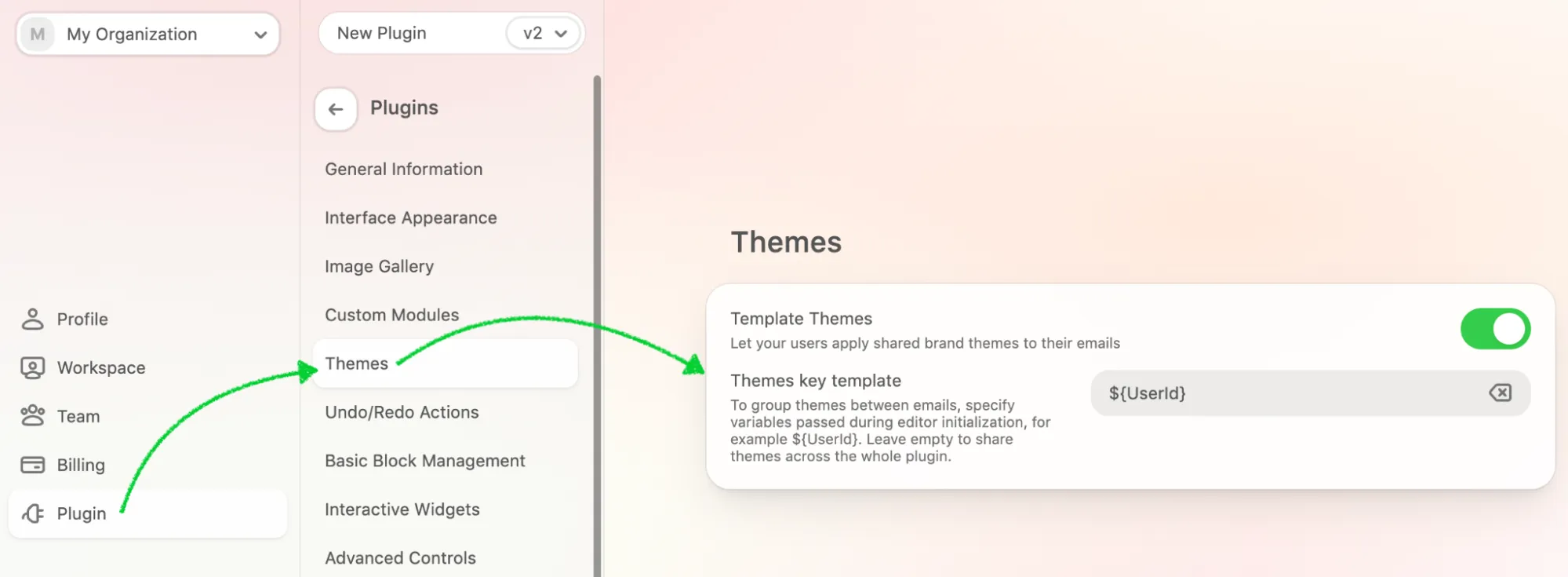
- Go to your plugin settings in the Stripo account → Themes.
- Turn on the Template Themes toggle.
- Optionally, fill in the Themes key template field to group themes by brand, tenant, or user (see below). Leave it empty to share one list of themes across the whole plugin.
On the Free, Startup, and Business plans the section is visible but locked, and the editor does not show the Theme block. The values you saved on the Enterprise plan are kept and come back automatically when the plan returns to Enterprise.
Please be advised: the Themes section is shown only for plugins that use the New Editor. For plugins on the legacy editor it is not available.
Themes Key Template
- The key template defines which themes a user sees in the editor. It works the same way as the Storage Key ID in Custom Modules: you define a template with variables in braces, and the editor fills the variables with the values from the
metadataparameter passed on editor initialization.
For example, with the key template brand_${brandId} and the following initialization:
js
Stripo.init({
 // ...
 metadata: {
   emailId: 'newsletter-01',
   brandId: 'acme'
 }
});
the user sees only the themes of the brand_acme scope. Users of other brands get their own separate lists of themes.
If the key template is empty, all users of the plugin share the same list of themes.
Rules:
- every variable used in the template must be present in
metadataas a string; if a value is missing, the editor fails to open the email; - variable names are matched to
metadatakeys exactly first, then case-insensitively; - the template and the resolved key may contain only Latin letters, digits,
_,-, and the${}placeholder syntax. Dots, spaces, and other characters are not allowed; - the template is limited to 200 characters and must not consist of spaces only;
- every
${must be closed with}.
Themes are always isolated per plugin: the resolved key is prefixed with your plugin ID automatically, so themes of other plugins are never visible.
Permissions
Template Themes introduce a new permission key: templateThemes
| Permission | Description |
|---|---|
read | Allows the user to see the Theme block, browse the list of themes, and see which theme is applied. Without it, the Theme block is hidden even when the feature is enabled. |
write | Allows the user to create, edit, save as new, and delete themes. Without it, the user can only apply existing themes. |
Applying a theme, replacing it, or selecting No Theme changes the styles of the email itself, so these actions additionally require appearance.write or content.write.
Example configuration:
json
{
 "templateThemes": {
   "read": true,
   "write": true
 }
}
If the User Permissions API is not configured, both values default to true. If it is configured, include the templateThemes key in its response.
See the Permissions and Access Management section for details about configuring permissions.
Checking access to a themes key on your side
If the Email Resources Permissions API is enabled in your plugin server settings, Stripo asks your endpoint before working with themes of a specific key, in the same way as for modules and images. The request contains a TEMPLATE_THEMES entry in requestPermissions:
json
{
 "pluginId": "123",
 "uiData": { "brandId": "acme" },
 "requestPermissions": [
   {
     "type": "TEMPLATE_THEMES",
     "action": "READ",
     "key": "pluginId123_brand_acme",
     "keyTemplate": "brand_${brandId}"
   }
 ]
}
To allow the operation, return an entry with the same type, action, and key in grantPermissions. If no matching entry is returned, the endpoint cannot be reached, or it responds with a status outside the 2xx range, access is denied.
| Action | What it allows |
|---|---|
READ | Opening the editor with themes, listing themes, listing the emails that use a theme, applying a theme to one or more emails. |
MODIFY | Creating, updating, and deleting themes. |
READ and MODIFY are granted separately: MODIFY does not imply READ. Detaching a theme from an email (No Theme in the editor or the unlink method of the API) does not require a theme permission, only access to the email itself.
See the Email Resources Permissions API reference for the full request and response format.
Events
The editor reports theme activity through the onEvent callback of the initialization settings. Use these events to sync your own catalog, trigger recompilation of linked emails on your side, or log analytics.
js
Stripo.init({
 // ...
 onEvent: function (type, data) {
   if (type === 'theme_updated') {
     // data.themeId -- the theme that changed; recompile the emails linked to it
   }
 }
});| Event | When |
|---|---|
themes_menu_opened | The user opened the list of themes. |
theme_created | A new theme was saved with Create theme. |
theme_applied | A theme was applied to the email from the list. |
theme_updated | Changes to an existing theme were saved with Edit theme. |
theme_saved_as_new | A copy of the styles was saved as a new theme with Save as new. |
theme_detached | The user selected No Theme. The parameters describe the theme that was detached. |
theme_deleted | A theme was deleted. |
theme_auto_updated | The email was updated to a newer version of its theme when it was opened. |
All theme events share the same parameters:
| Parameter | Type | Description |
|---|---|---|
themeId | string | null | ID of the theme. The same ID is used by the Backend API. null for themes_menu_opened when no theme is applied. |
themeName | string | null | Name of the theme. |
themeVersion | number | null | Version of the theme at the moment of the action. The version grows every time the styles of the theme are saved. |
themesCount | number | Number of themes available to this user after the action. |
Events are sent only after the server confirms the operation; a failed or rejected action does not produce an event. They are not sent when Template Themes are disabled. Events describe actions of the current editor session only: changes made by other users or through the Backend API are not reported.
Managing Themes from Your Backend
With a plugin token of the API role you can manage themes without opening the editor: list, create, update, and delete themes, find the emails linked to a theme, apply a theme to one email or to many emails in one request, and detach a theme from an email. See Backend API → Template Themes.
If your key template contains variables, pass their values in the Es-Plugin-Ui-Data header as a URL-encoded JSON object, the same values you pass in metadata on editor initialization. For example, {"brandId":"acme"} becomes %7B%22brandId%22%3A%22acme%22%7D.
A typical flow:
- Enable Template Themes and set the key template in your plugin settings.
- Pass the matching
metadataon editor initialization so that users see the right themes. - Users create and apply themes in the editor, or you create them through the API.
- Listen to
theme_updatedviaonEvent, or call GET/coediting/v1/template-themes/{themeId}/emails, to find the emails that need to be recompiled on your side. - Use POST
/coediting/v1/model/theme/bulk-applyto move a group of emails to another theme.
Troubleshooting
- The Theme block is not shown in the editor: the plugin is not on the Enterprise plan, the toggle is off in the plugin settings, or the User Permissions API returns
templateThemes.read: false(or does not contain the key). - The editor does not open the email after the key template was set: a variable from the key template is missing in
metadata, or the template contains characters other than Latin letters, digits,_,-, and${}. - Users see different lists of themes: their
metadatavalues resolve to different keys. Compare the values of the variables used in the key template. - An API request returns
400with a message about a missing placeholder: the key template contains a variable that is not present in theEs-Plugin-Ui-Dataheader of the request. - A theme was changed, but the exported HTML still has the old styles: the email was compiled before the change. Request the HTML again or reopen the email.