
URL Checker
Supported since plugin version 2.81.0
The URL Checker lets users find broken, unsafe, or suspicious links in an email template directly in the editor, before the campaign is sent.
The feature provides a dedicated URL Validation Mode that collects every link, image source, and anchor from the compiled email, validates them, and lists the results in a side panel grouped by status.
With URL Validation Mode, users can:
- see all links, image sources, anchors, and merge-tag links of the email in one place;
- detect broken links (invalid format, DNS failures, HTTP errors), unsafe domains, redirects, shortened links, insecure
httplinks, and slow-loading pages; - detect broken anchors (
#namethat points to no element in the email); - fix a link right from the results panel, or update all occurrences of the same link at once;
- ignore findings that are expected;
- preview the email in mobile or desktop layouts during testing;
- jump to the code of the element that contains the link.
How It Works
When the URL Checker is activated, the editor switches to URL Validation Mode.
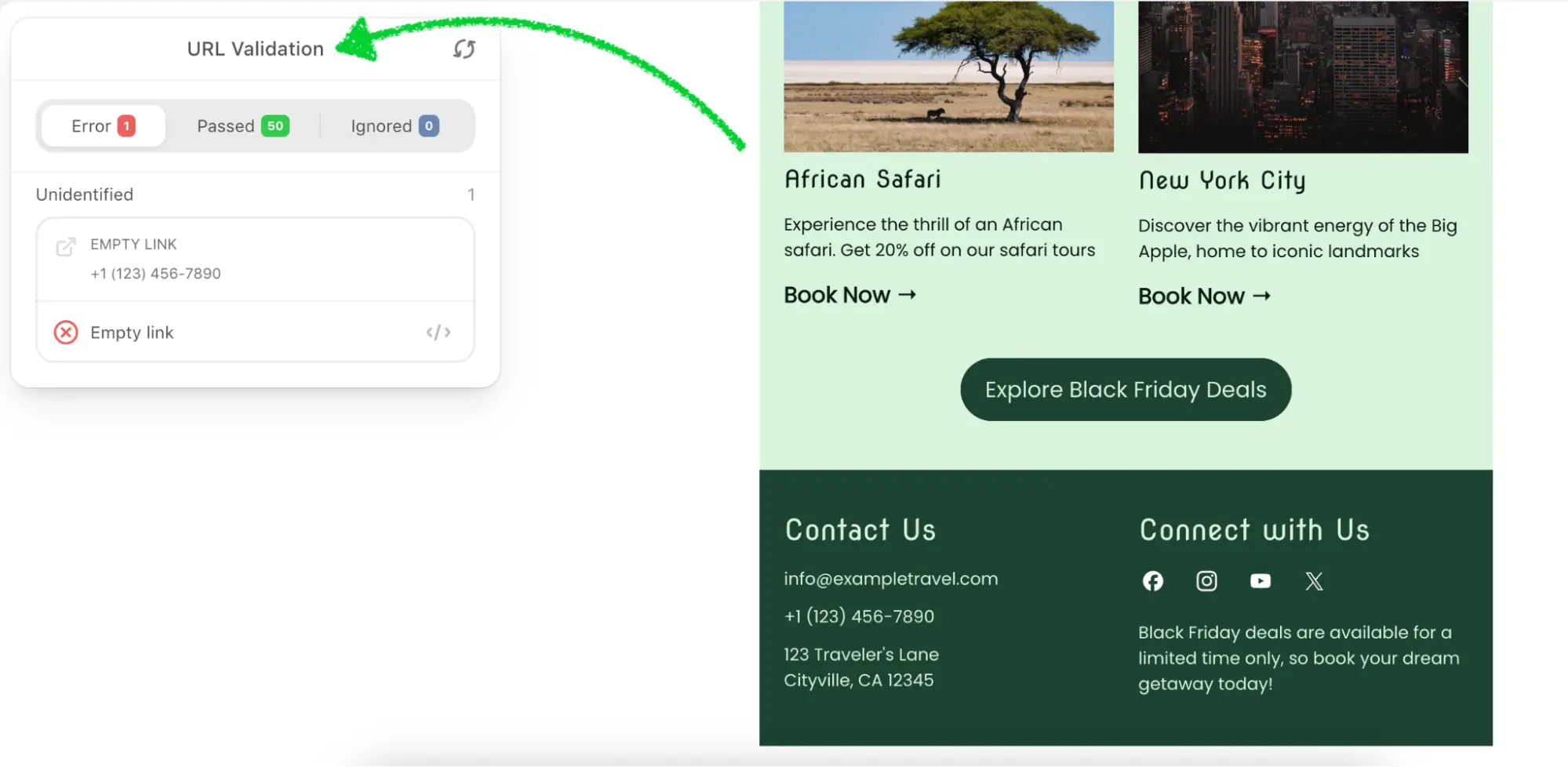
In this mode:
- the editor compiles the email and extracts every
hrefandsrcvalue; - the format of each value is validated on the client. Merge tags and special links from your initialization settings are treated as valid;
mailto:,tel:,sms:,viber:,ftp:, andtg:protocols are validated by their own rules; anchors are matched against the anchor names in the email; - links and image URLs that pass the format check are sent to the Stripo URL validation service, which checks the HTTP status, redirects, response time, domain reputation (Google Web Risk), and known URL shorteners;
- results are shown in the Error, Passed, and Ignored tabs, grouped into Links, Images, Anchors, and Unidentified sections.
URL Validation Mode does not modify the email automatically. A user with the write permission can change a link in the results panel and apply it to one element or to all elements that use the same link. When the email is edited while the mode is open, the panel asks to re-run the check.
Findings marked as Ignored are kept only for the current editor session.
Please be advised that the controls used to enter and leave this mode (and to switch between desktop and mobile preview) are not part of the plugin UI itself. These controls can be implemented in the host application interface (for example, in a custom header panel). The results panel is part of the editor.
To support such integrations, the plugin provides additional API methods that allow plugin owners to connect their own UI controls to the URL Validation functionality.
How to Activate
URL Validation Mode is opened and closed programmatically using the JavaScript API.
To start URL validation via API:
js
window.StripoEditorApi.urlLinkValidationApi.openUrlLinkValidationMode();To exit the mode and return to the regular editing mode:
js
window.StripoEditorApi.urlLinkValidationApi.closeUrlLinkValidationMode();The check starts automatically when the mode opens. For the complete list of available methods and usage examples, see the Controlling URL Validation via API section.
Permissions
URL Checker introduces a new permission key:
urlValidation
This permission controls whether users can open URL Validation Mode and whether they are allowed to fix links from the results panel.
| Permission | Description |
|---|---|
read | Allows the user to open URL Validation Mode, run and re-run the check, and view the results. |
write | Allows the user to edit a link from the results panel and apply the change to one or all elements. Without it, the Update actions are disabled and the results are view-only. |
Example configuration:
js
{
  "urlValidation": {
    "read": true,
    "write": true
 }
}
If the permissions checker is not configured, both values default to true.
If the permissions checker is configured, include the urlValidation key in its response. When the key is missing, the editor treats the feature as not allowed and openUrlLinkValidationMode() does nothing.
See the Permissions and Access Management section for details about configuring permissions.
Events
The editor reports URL validation activity through the onEvent callback of the initialization settings:
| Event | When | Parameters |
|---|---|---|
url_validation_completed | A check (or re-check) finished. | passed_issues, error_issues, ignored_issues, refreshed (true for a re-check), entity, entityId, source |
url_ignored | A user marked a failed link as ignored. | entity, entityId, source |
Controlling URL Validation via API
The URL Checker can be controlled programmatically using the URL Validation API.
This API allows your application to:
- open or close URL Validation Mode;
- check whether the mode is active;
- switch between mobile and desktop previews while the mode is active;
- run the validation and receive the results in code.
All methods are available through:
js
window.StripoEditorApi.urlLinkValidationApiFor the full list of available methods, see the URL Validation API section.
Troubleshooting
openUrlLinkValidationMode()does nothing andisUrlLinkValidationModeOpen()staysfalse: the current user has nourlValidation.readpermission, or your permissions checker response does not contain theurlValidationkey.switchToMobilePreview()/switchToDesktopPreview()have no effect: these methods work only while URL Validation Mode is open.validate()does not return a result directly: it returns an RxJSObservable. Usesubscribeor wrap it in a Promise